


GoProfiles thrives on having many team members sharing and searching for information about each other. From your first user to your hundredth, inviting team members into the workspace helps build a connected, collaborative culture.
Workspace invitation permissions
- Admins within any workspace will have the option to turn the left rail invite button on and off.
Ways to invite a new member
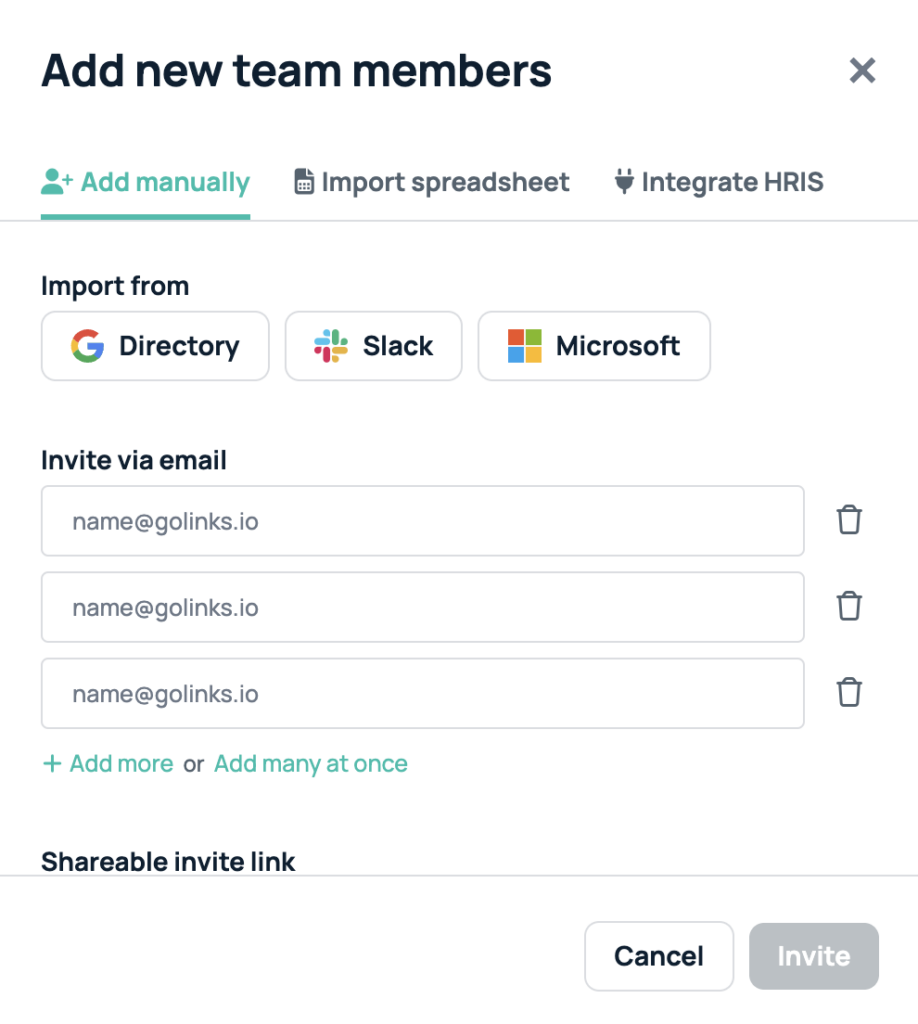
- Click on the “Invite” button on your GoProfiles dashboard in the top right. From here you can invite team members manually, by bulk importing then, and by integrating with your HRIS.
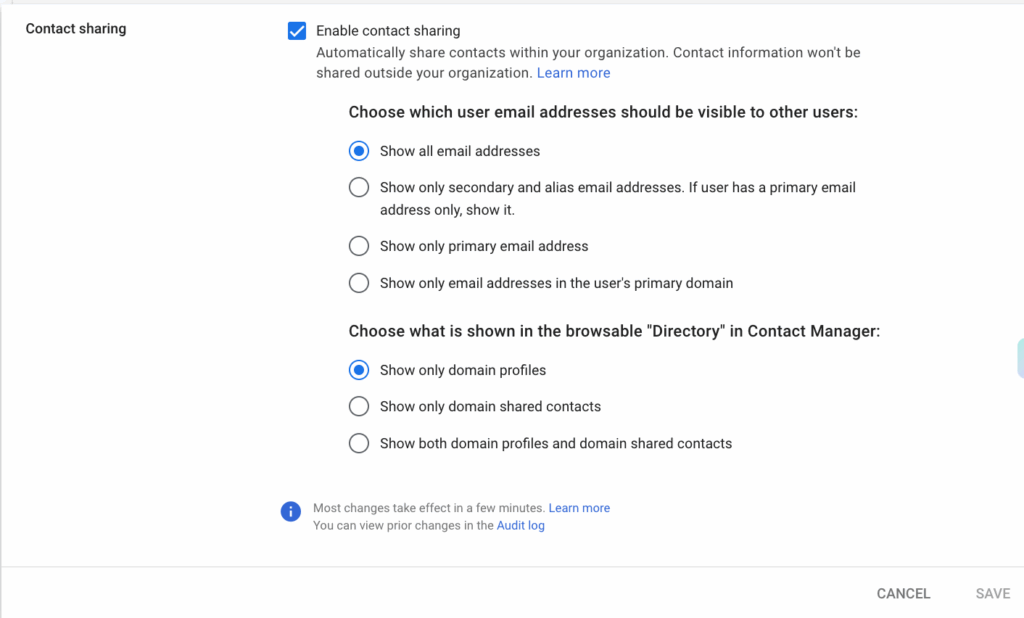
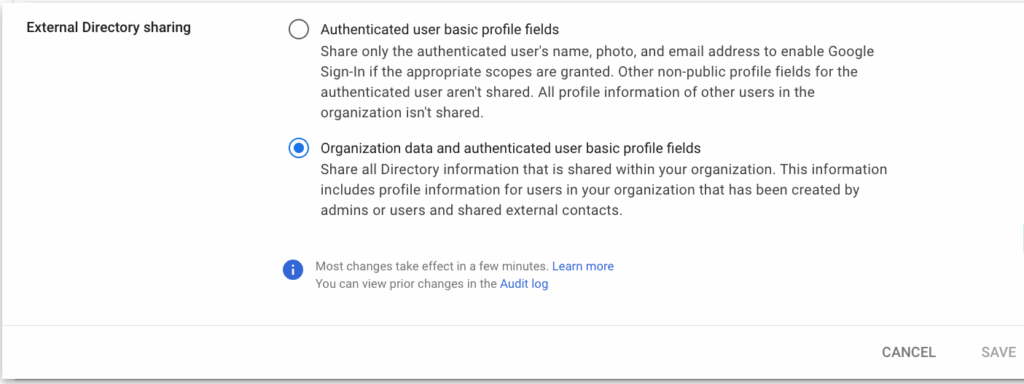
Note: If you are using Google Directory, ensure that within the Google Admin Panel “external directory sharing” and “contact sharing” are both enabled. Instructions can be found here.
Send an invitation
Once on the invite page, these are the steps to follow in order to send the invite(s) out to your selected recipients. Send an invitation
Once on the invite page, these are the steps to follow in order to send the invite(s) out to your selected recipients.
- Enter the recipient’s work email address
- You may click on + add another to insert multiple email addresses.
- Click Invite to send invitations.
- You will receive a confirmation of which emails have successfully been invited and which may have failed. Typically, invitation failures are due to incorrect spelling of the email domain, the email domain of the recipient is not an approved domain, or the email address has already been invited.
Managing pending invitations
- Find pending invitations on your member page (Admin console). You may select the Pending filter to only view pending members.
- Click Resend invite to send another invitation email.
- Note: GoProfiles automatically sends pending users a reminder email after two days of the initial invitation.
- Click Cancel to rescind the invitation.
Troubleshooting
Need more help? If you have any questions, feel free to reach out to our support team. You can use the chat bubble in the lower right corner, or you can reach us at support@golinks.io.














