


This article is meant to provide you insight on what you should expect to see when your Customer Success Manager helps you connect Bamboo HR to GoProfiles via API. Reading this prior to connecting the two platforms can help you walk through the connection process smoothly.
Note: Please ensure you have Full-Admin access in your company’s BambooHR instance, or someone has shared their access with you or that you have a Custom Access Level with sufficient access.
For Custom Access Level with sufficient access
- If your use case is basic user provisioning, please see this article on enabling sufficient access.
- If your use case requires more data than basic user provisioning, here are some guidelines:
- You should set your Access Level to view “All Employees”, otherwise the data synced will be missing employee records.
- You should allow View Access to information you want to be synced.
- You should allow View Access to view your section to ensure your record is also synced.
You can find your access level in BambooHR by going to Settings > Access Levels.
Instructions
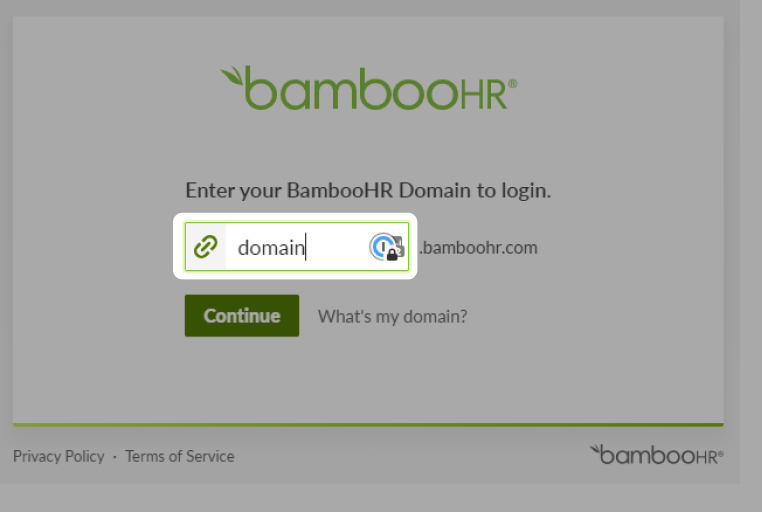
Step 1: Add your BambooHR subdomain to the linking flow.
- For example, if you sign in at “acme.bamboohr.com”, add acme. Do not enter the full “acme.bamboohr.com”
Step 2: Find your BambooHR API key.
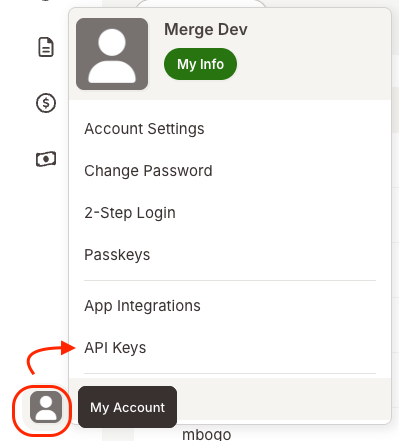
- Click on the profile avatar in the bottom left-hand corner and in the user context menu click on API Keys.
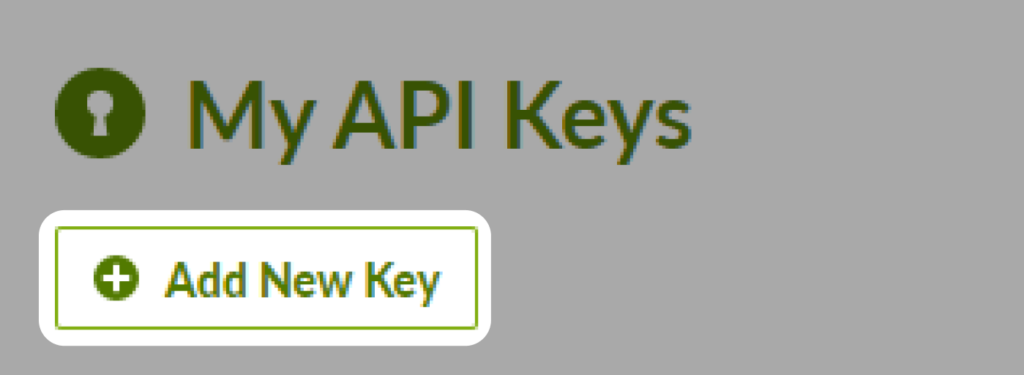
- Click Add New Key in the upper left corner.
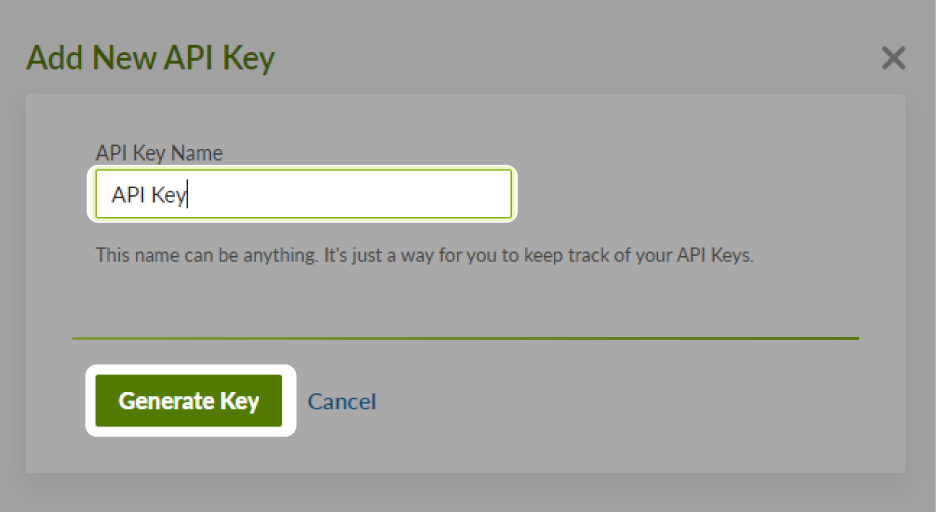
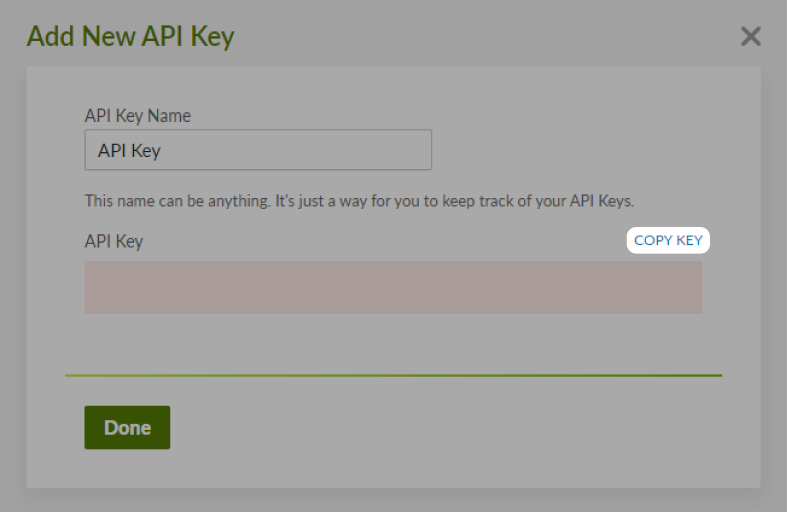
- Input an API Key Name, and then click Generate Key.
- Copy the API key that appears, and add it to the linking flow.
You should now be able to set up Bamboo HR via API with your Customer Success Manager. If you need further assistance, please consult the GoProfiles Help Center or Chat with us.














