


This article is meant to provide you insight on what you should expect to see when your Customer Success Manager helps you connect PeopleHR to GoProfiles via API. Reading this prior to connecting the two platforms can help you walk through the connection process smoothly.
Generating your API Key.
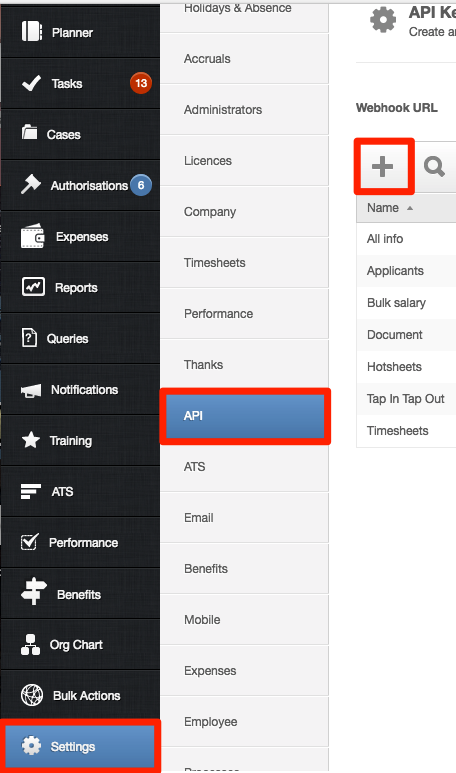
- In your PeopleHR account, go to your Settings in the bottom left. Select API and click the + icon.
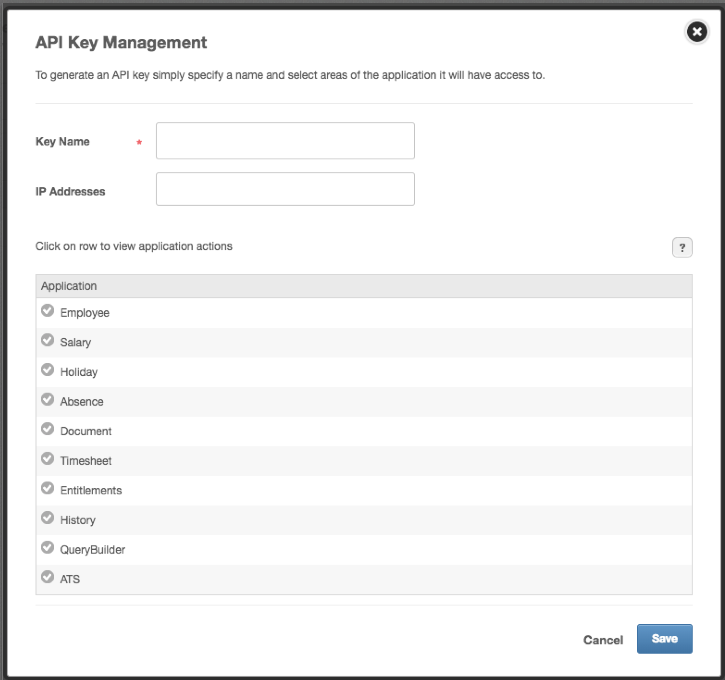
- On the API Key Management screen, fill in a Key Name.
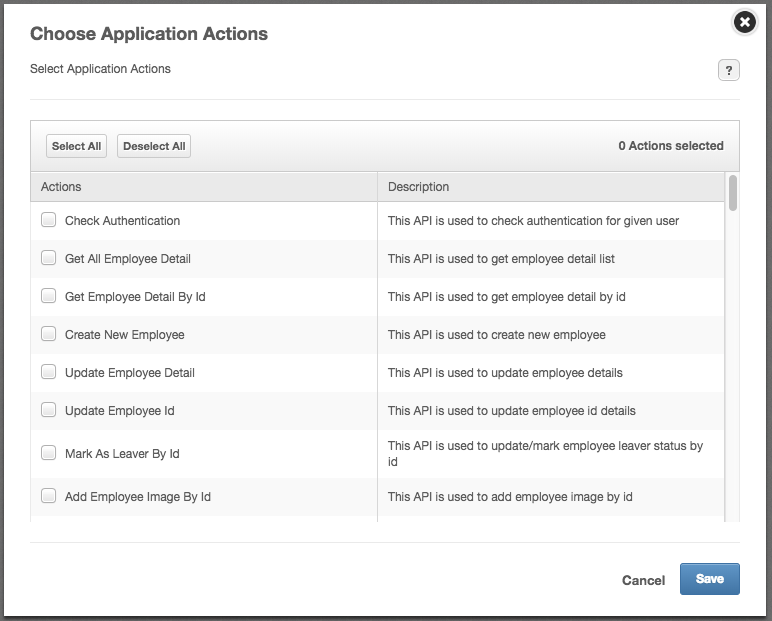
- For the application actions, click Select All for Employee, Salary, Absence, and Holiday.
- Press Save. Copy and store your Key in a safe place.
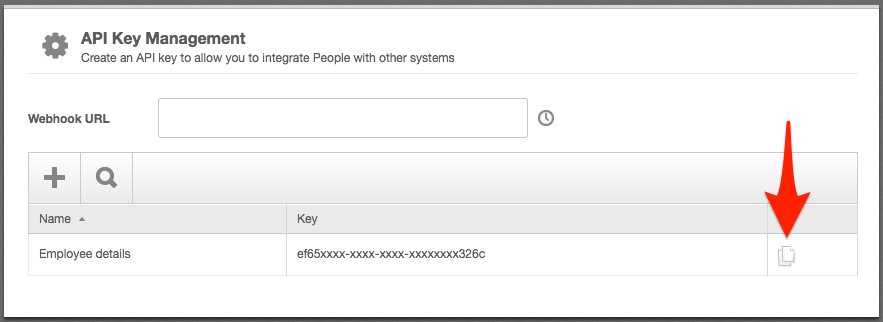
- Copy and Paste the API Key to your clipboard and paste into the Profiles Link.
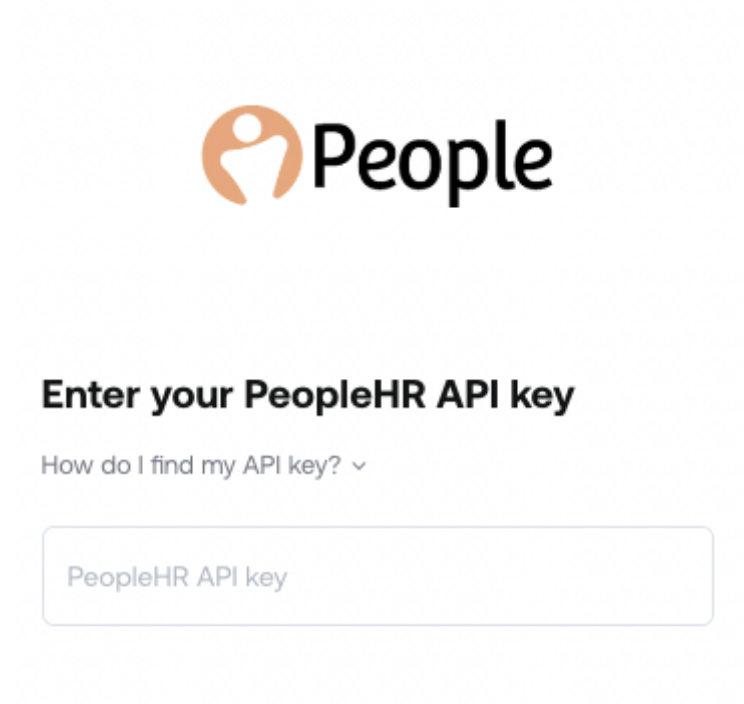
You should now be able to set up PeopleHR via API with your Customer Success Manager. If you need further assistance, please consult the GoProfiles Help Center or Chat with Us.














