


This article is meant to provide you insight on what you should expect to see when your Customer Success Manager helps you connect Microsoft Entra ID to GoProfiles via OAuth. Reading this prior to connecting the two platforms can help you walk through the connection process smoothly.
Instructions
Click into Azure Active Directory.
- Log into your Azure Portal and look for the “Azure services” section.
- Click on “Azure Entra ID”.
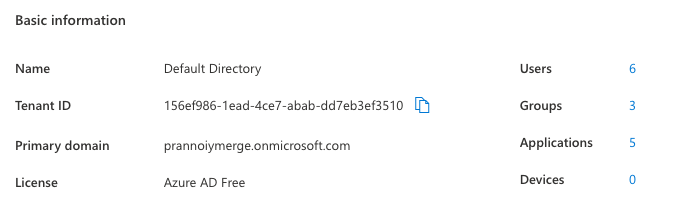
Find Tenant ID under “Basic Information”.
- After clicking on Microsoft Entra ID, you should be able to navigate to the Overview Page which has all the “Basic Information” for your Organization.
Input Tenant ID into Profiles
- Copy and Paste the Tenant ID into Profiles and click submit!
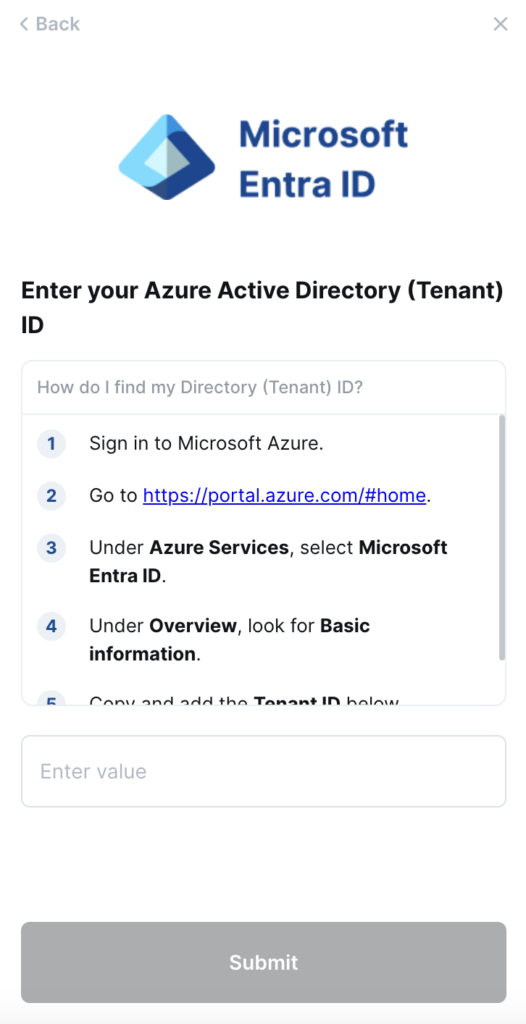
You should now be able to set up Microsoft Entra ID via OAuth with your Customer Success Manager. If you need further assistance, please consult the GoProfiles Help Center or Chat with us.














