


This article is meant to provide you insight on what you should expect to see when your Customer Success Manager helps you connect Paychex to GoProfiles via OAuth. Reading this prior to connecting the two platforms can help you walk through the connection process smoothly.
Get your OAuth credentials.
- You’ll want to log in to your Paychex account and go into Company Settings.

- Select “Integrated apps”.

- Click “Create App”.

- Enter Application Name and Description.

If you do not have access to Payroll, please contact your Paychex representative for help.
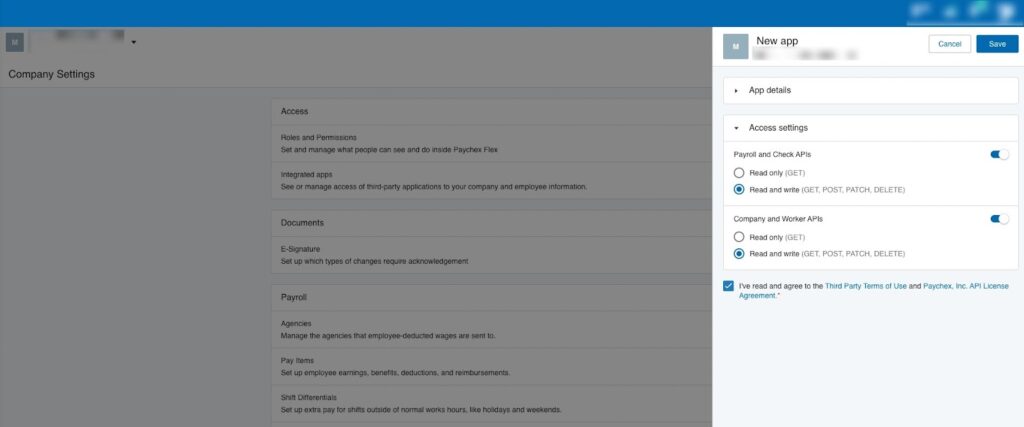
- Select Read & Write for both Payroll and Company & People. Accept the Legal Notice and Paychex Inc, API License Agreement, then hit “Save”.
- You’ll then see the API key and Client Secret, which you’ll paste into the Profiles Link!

- Paste your API Key and API Secret in the Profiles Link

You should now be able to set up Paychex via OAuth with your Customer Success Manager. If you need further assistance, please consult the GoProfiles Help Center or Chat with Us.














