


Dotted line relationships in GoProfiles helps teams represent secondary reporting relationships that exist outside of a primary manager structure. This gives employees and admins a more complete view of how people work together across the organization while keeping primary reporting lines unchanged.
How to Use Dotted Line Relationships
- From your GoProfiles dashboard, open the Org Chart or navigate to the org chart card on an employee profile.
- Click on the Dotted Line icon to see that employee’s dotted line relationships.
- If you are an admin, select the option to edit dotted line relationships.
- Add a dotted line relationship by selecting an existing user in GoProfiles.
- Dotted line relationships are intended for existing users already in your organization.
- Save your changes to update the relationship view.
- Return to the dotted line org chart view to confirm the dotted line relationship is now reflected visually.
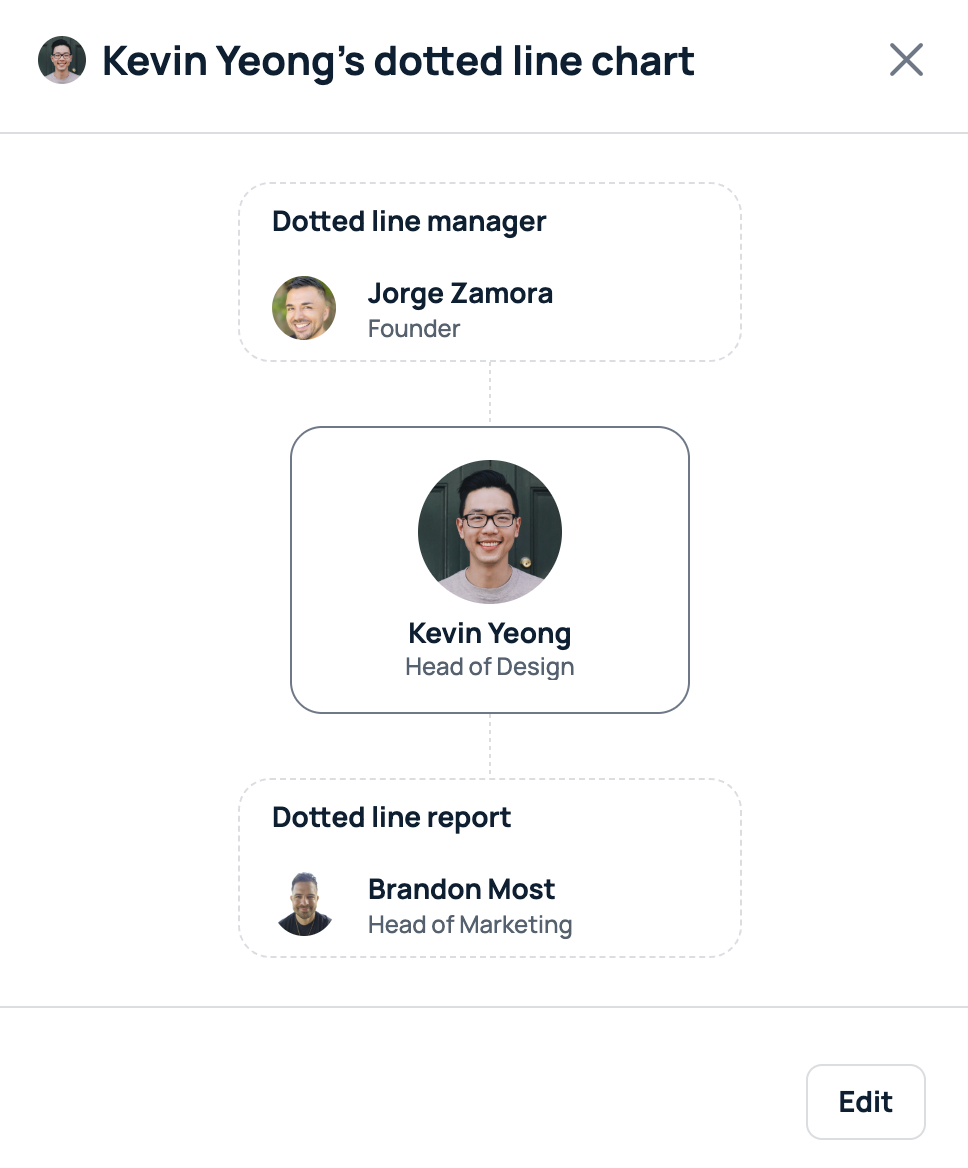
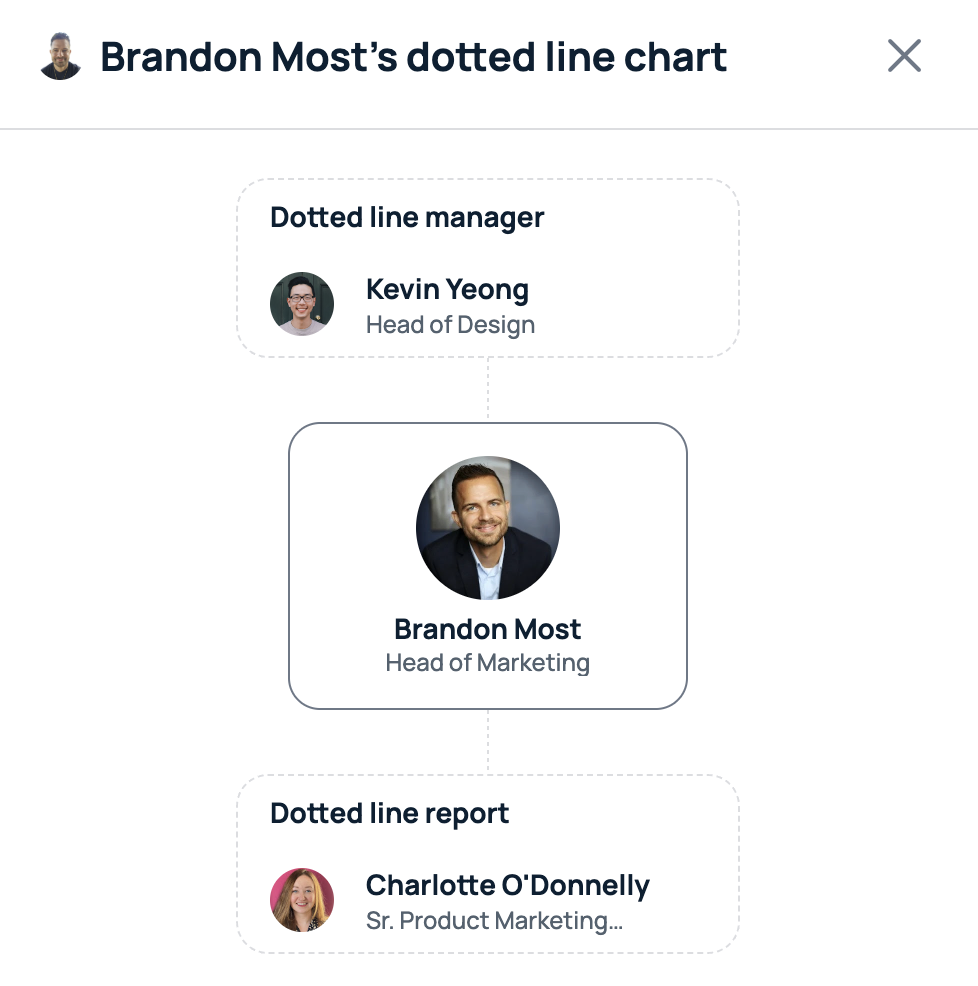
Your dotted line relationships are now updated in GoProfiles. If you need further assistance, please consult the GoProfiles Help Center or Chat with us.














