


This article is meant to provide you insight on what you should expect to see when your Customer Success Manager helps you connect HR Partner to GoProfiles via API. Reading this prior to connecting the two platforms can help you walk through the connection process smoothly.
Find your HR Partner API Key.
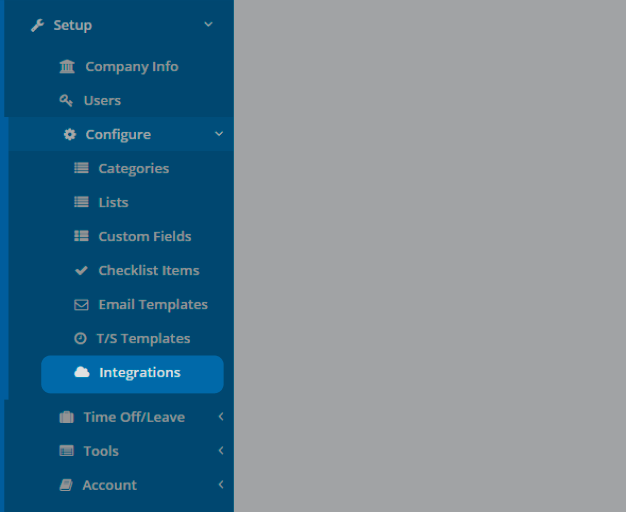
- Log into your HR Partner as an admin for your organization, and click on the Setup button on the left navigation bar.
- Once the Setup menu is expanded, go to Configure and click Integrations.
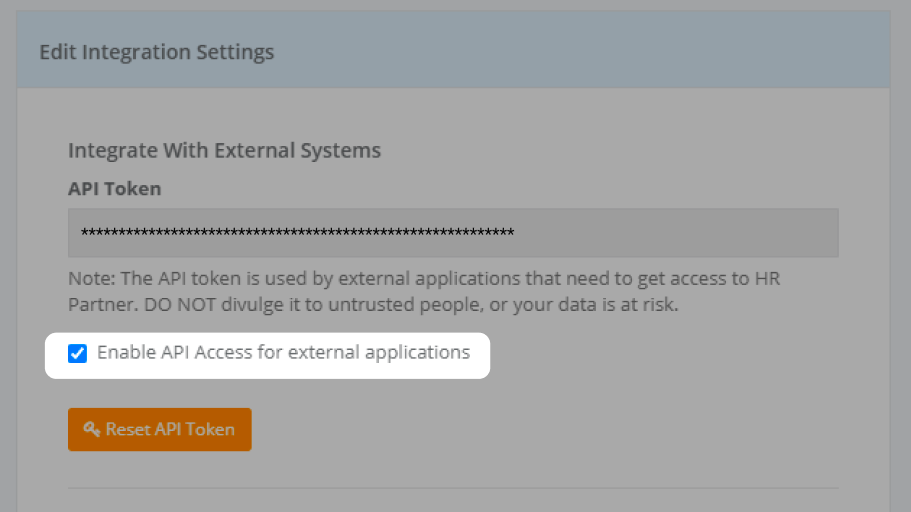
- At the top of the integrations page, you’ll see your integrations settings. Make sure that “Enable API Access for external applications” is checked.
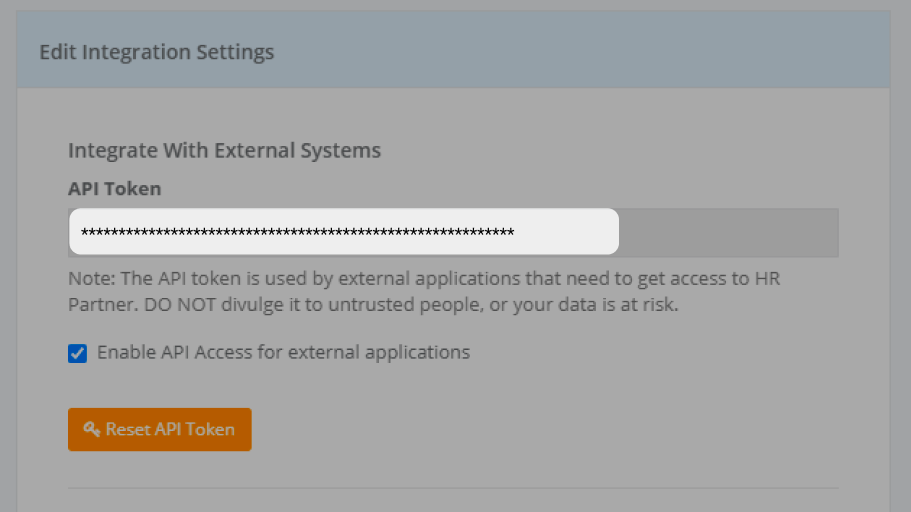
- Copy and paste the API Token below.
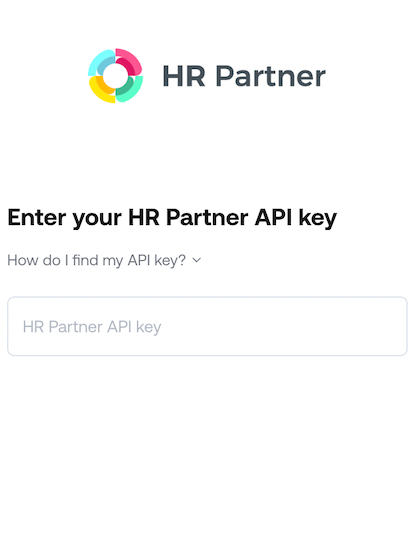
- Paste the API Token back into your Profiles Link, and press Submit.
You should now be able to set up HR Partner via API with your Customer Success Manager. If you need further assistance, please consult the GoProfiles Help Center or Chat with us.














