


Overview
This article will serve to walk you through how to set up your JustWorks Data Connector Source to GoProfiles with your Customer Success Manager. To authenticate your JustWorks account, you will need to create a new service user using the information from the linking flow. This guide will walk you through completing that process in JustWorks.
Prerequisites
Please ensure you fulfill all the requirements to set up the integration:
- You are an Administrator in your company’s JustWorks instance, or someone has shared their access with you.
Instructions
Step 1: Add 3rd-party.
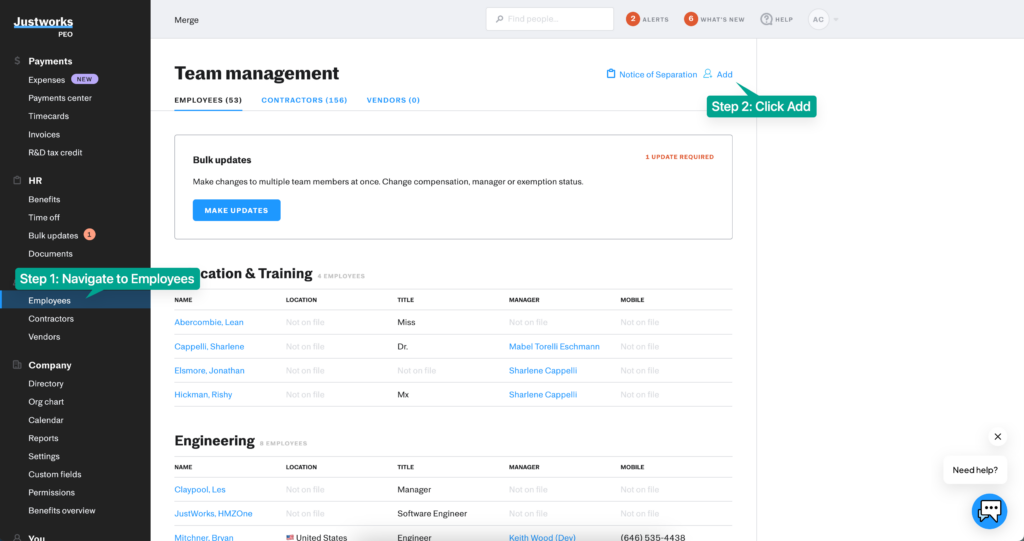
- In the side navigation click on the Employees section.
- Then click Add to create a new Employee.
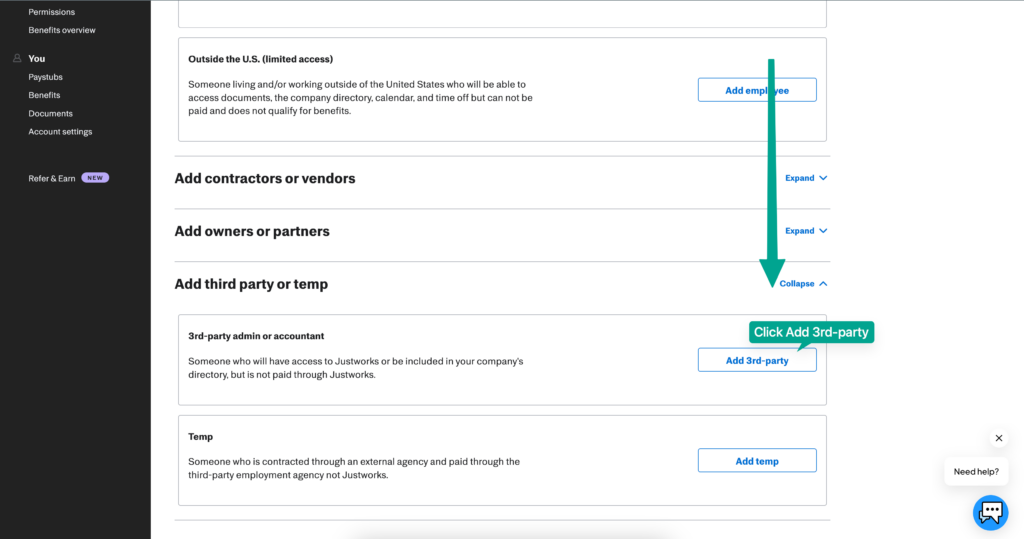
- Scroll down on the page, expand “Add third party or temp” and then click Add 3rd-party.
Step 2: Setup Service Account.
Note: If you are transitioning your JustWorks account from a previous authentication process, you must re-open the linking modal and pull the work email. This email address won’t be found in JustWorks.
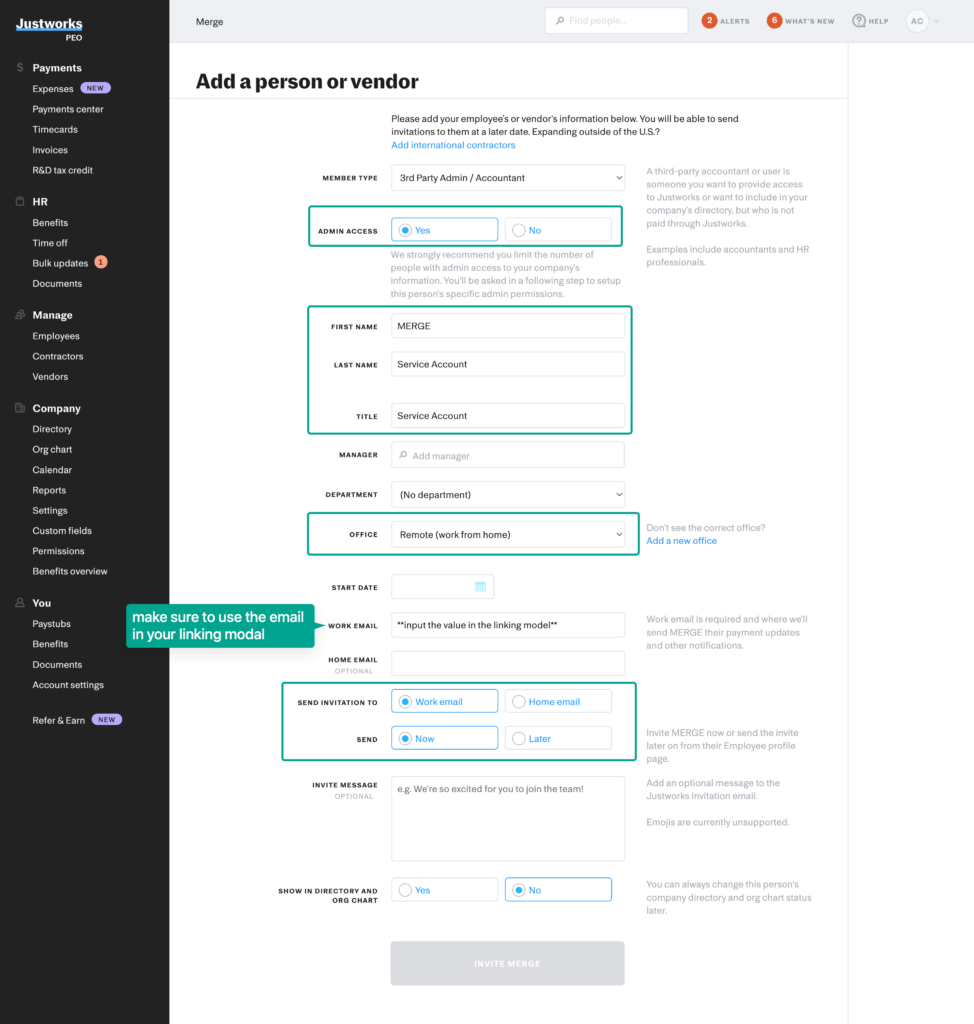
Here, you will add the details for the Employee used for Service Account integrations. Make sure to fill out the form as follows.
- Member Type: 3rd Party Admin / Accountant
- Admin Access: Yes
- First Name: First name provided in the linking flow
- Last Name: Service Account
- Title: Service Account
- Manager: can be empty
- Department: No Department
- Office: Remote (work from home)
- Start date: can be any value
- Work Email: Input email provided in the linking flow
- Send Invitation to: Work Email, Now
Step 3: Add permissions.
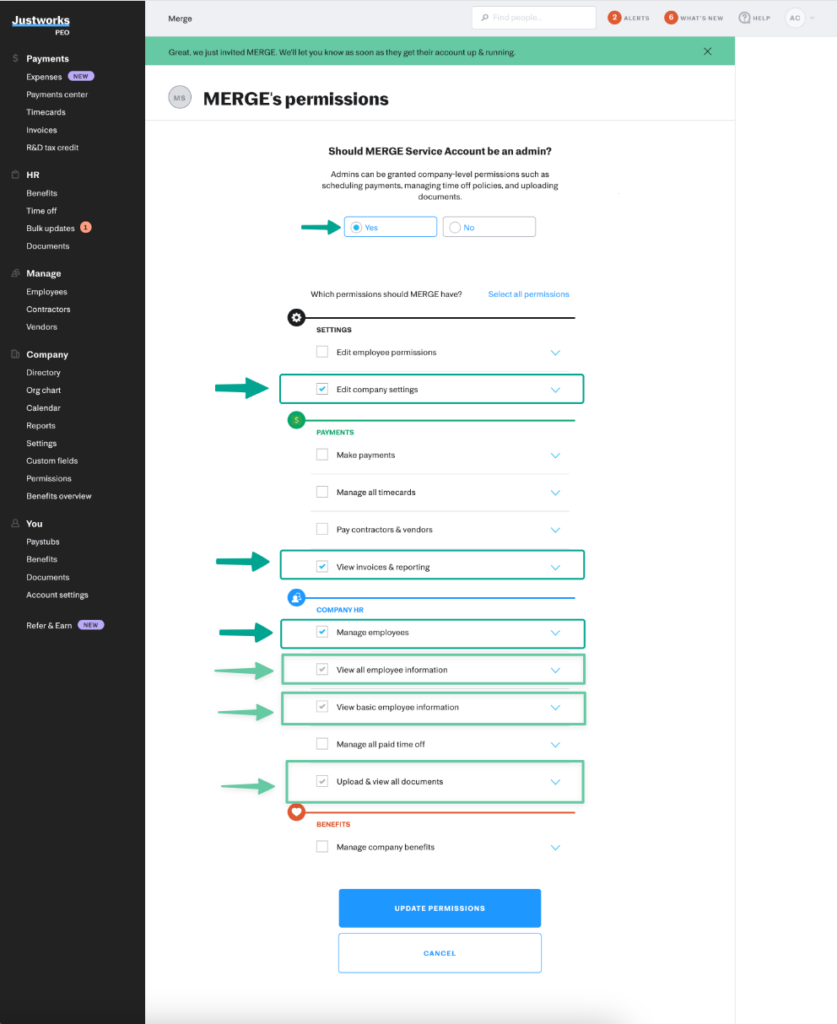
To successfully connect, you must include ALL of the permissions below
Notes
More information about why each permission is required:
- Edit Company Settings: This is required for our integration to view Company, Office, Location, and Department information. Although we will only be viewing this information, Justworks requires EDIT access to view this information.
- Manage Employees: This is required to view Employee information and access the Employee Census Report and the Work History Report.
- View all employee information: This is required to view Employee information and access the Employee Census Report and the Work History Report.
- View basic employee information: This is required to view Employee information and access the Employee Census Report and the Work History Report.
- Upload and View all Documents: This is required to access the Employee Census Report and Work History Report.
- View Invoices and Reporting: This is required to access the Employee Census Report and Work History Report.
You should now be able to set up the JustWorks Data Connector with your Customer Success Manager. If you need further assistance, please consult the GoProfiles Help Center or Chat with us.














