


This article is meant to provide you insight on what you should expect to see when attempting to connect ChartHop to GoProfiles with your Customer Success Manager. Reading this prior to connecting the two platforms can help you walk through the API access smoothly.
Overview
To authenticate ChartHop, you will need to provide the following information:
- ChartHop subdomain
- API key
Prerequisites
Please ensure you have Admin permissions in your company’s ChartHop instance or someone has shared their access with you.
Instructions
Step 1: Locate your ChartHop subdomain.
- If your ChartHop URL is “https://app.charthop.com/acme/home“, add “acme”.

Step 2: Find your ChartHop API key
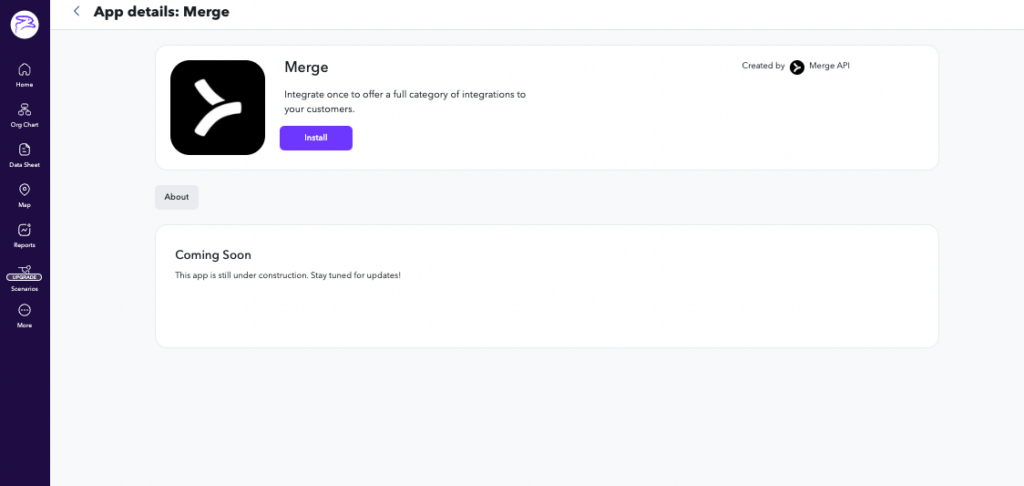
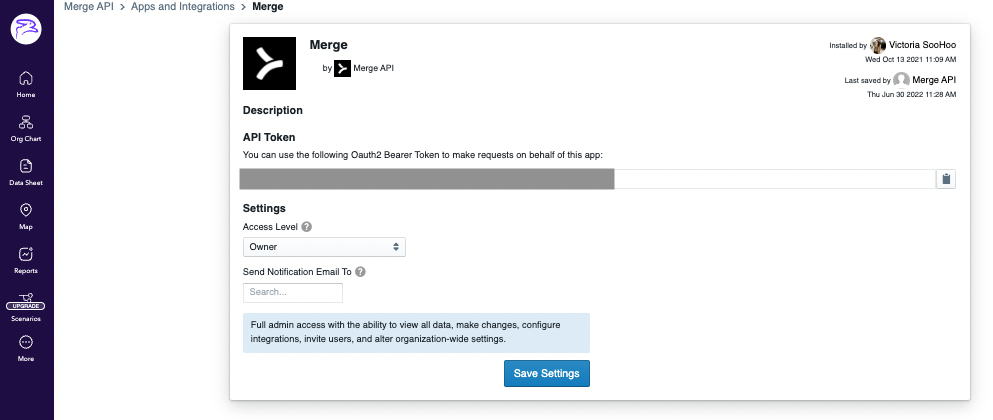
- Save the API Token.
Step 3: Enter your API key into the linking flow

You should now be able to set up the ChartHop Data Connector with your Customer Success Manager. If you need further assistance, please consult the GoProfiles Help Center or Chat with us.














