Breathe HRIS Data Connector Instructions

This guide will outline the steps needed to connect with the Breathe data connector source for your HRIS set to GoProfiles with your Customer Success Manager.

Overview

To connect your Breathe account, you will need to provide an API key.

Prerequisites

You are an Administrator in your company’s Breathe instance, or someone has shared their access with you.

Instructions

Step 1: Find your production API key
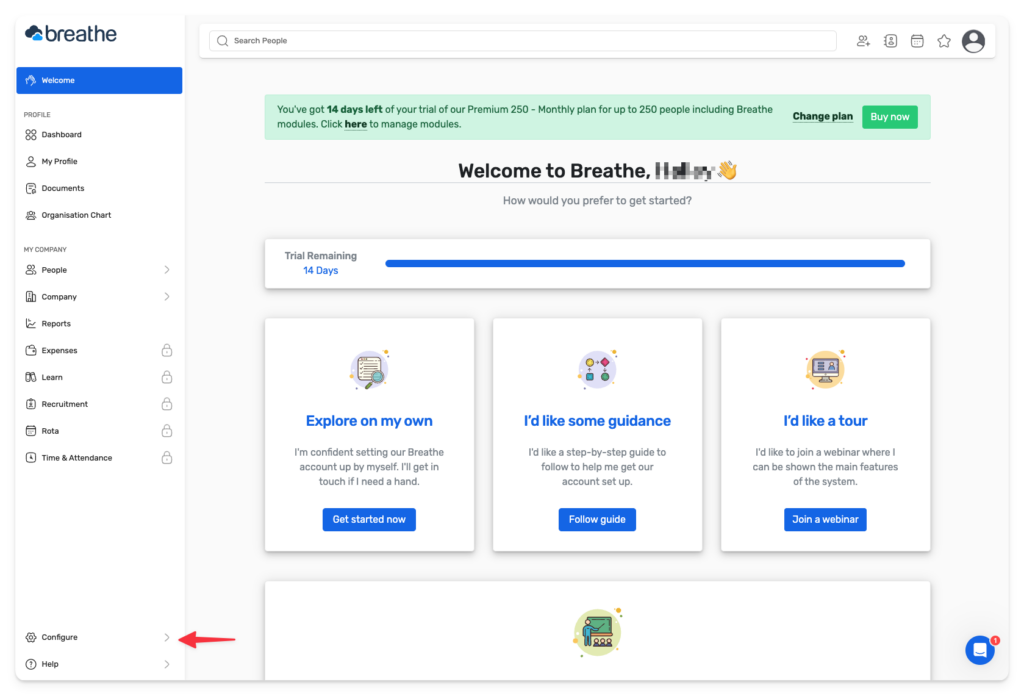
  1. Login to your Breathe account.
  2. Click Configure in the bottom left corner.
breathe hris dashboard
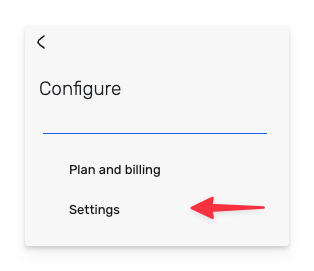
  1. Click Settings in the panel that opens.
configure in your settings
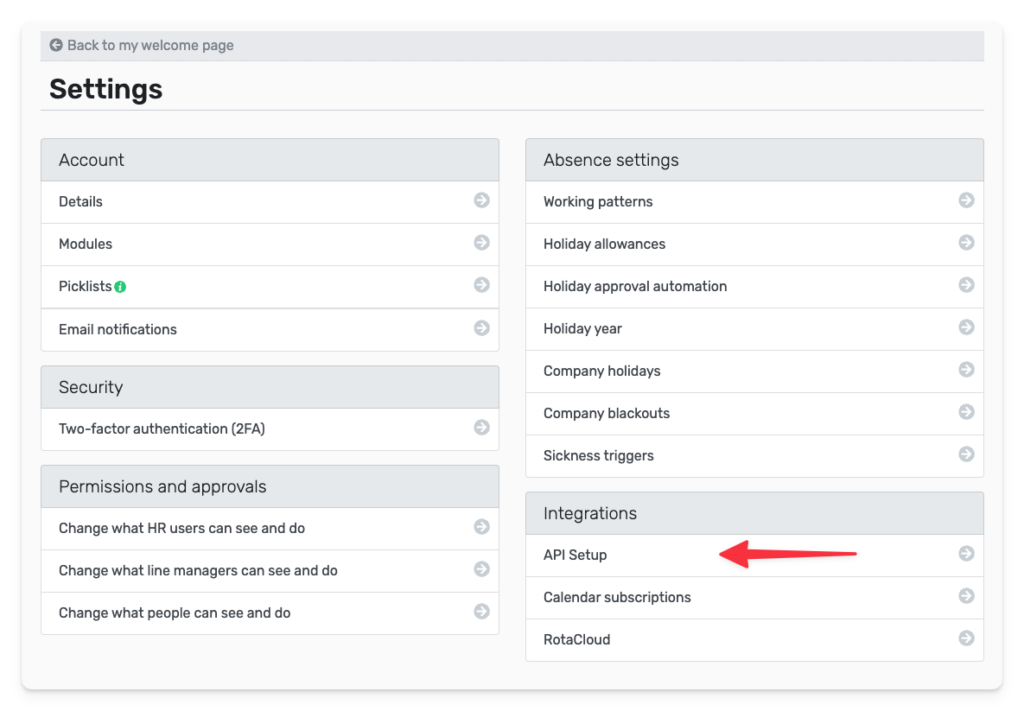
  1. Click API Setup in the bottom right.
api set up in breathe's integration tabs
  1. Click Enable API if you haven’t already done so in the past. Agree to the terms that pop up on the subsequent screen.
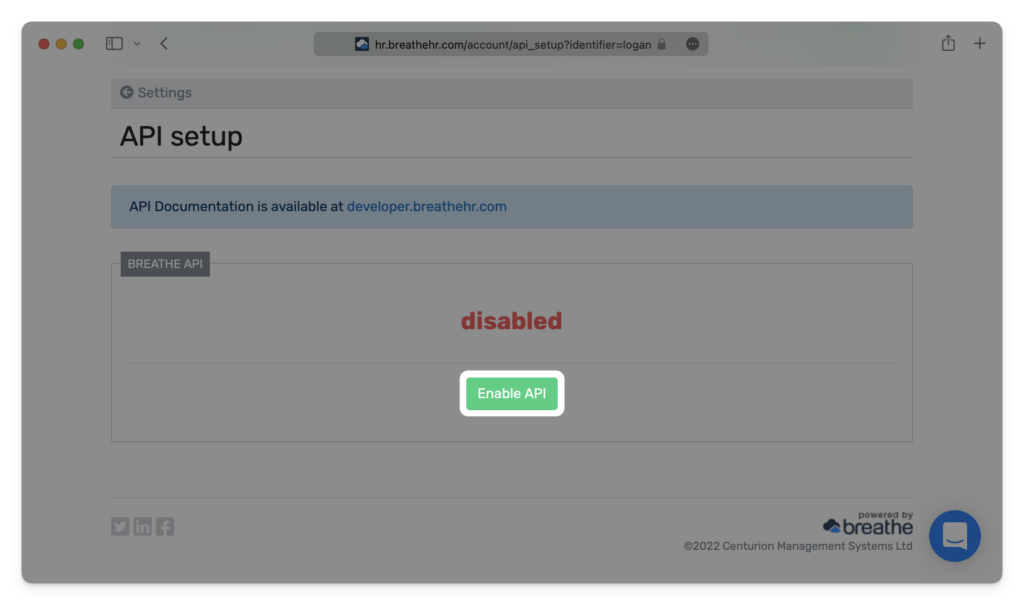
enable api in the api set up
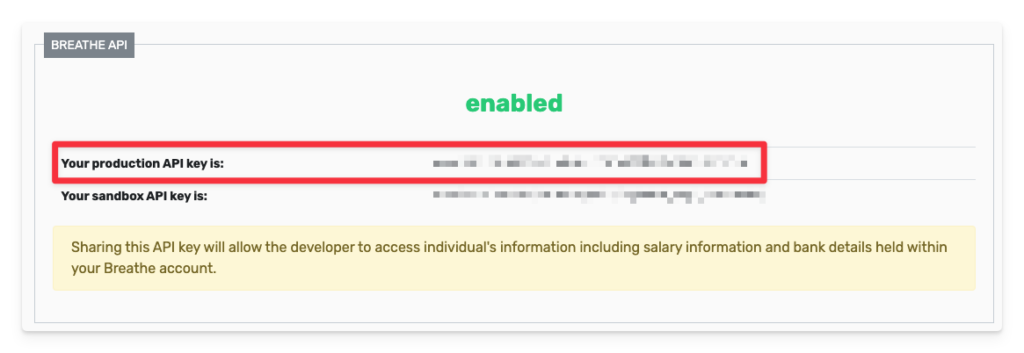
  1. Copy your production API key.
your production api key enabled in breathe api

Step 2: Enter your production API key in the linking window.

entering your API key for breathe HRIS

You should now be able to set up the Breathe HRIS Data Connector with your Customer Success Manager. If you need further assistance, please consult the GoProfiles Help Center or Chat with Us.

Need more help?

Technical support

Send us your technical inquiries

Contact us →
Contact sales

Demo or answer sales questions

Contact sales →
Chat with us

Get quicker responses with chat

Chat now →
Blog

GoProfiles and productivity articles

View blog →
Box vector large Box vector medium Box vector small

Connect employees with AI profiles and rewards

Connect employees with AI profiles and rewards