


This article is meant to provide you insight on what you should expect to see when attempting to connect your data source with GoProfiles. Reading this prior to connecting the two platforms can help you walk through the API access smoothly.
Overview
To authenticate Personio, you will need to provide the following information:
- Client ID
- Client Secret
This guide will walk you through finding or creating those credentials within Personio.
Prerequisites
Please ensure you fulfill all the requirements to set up the integration:
- You have Administrator permissions in your company’s Personio instance or someone has shared their access with you
Instructions
Step 1: Generating your API credentials.
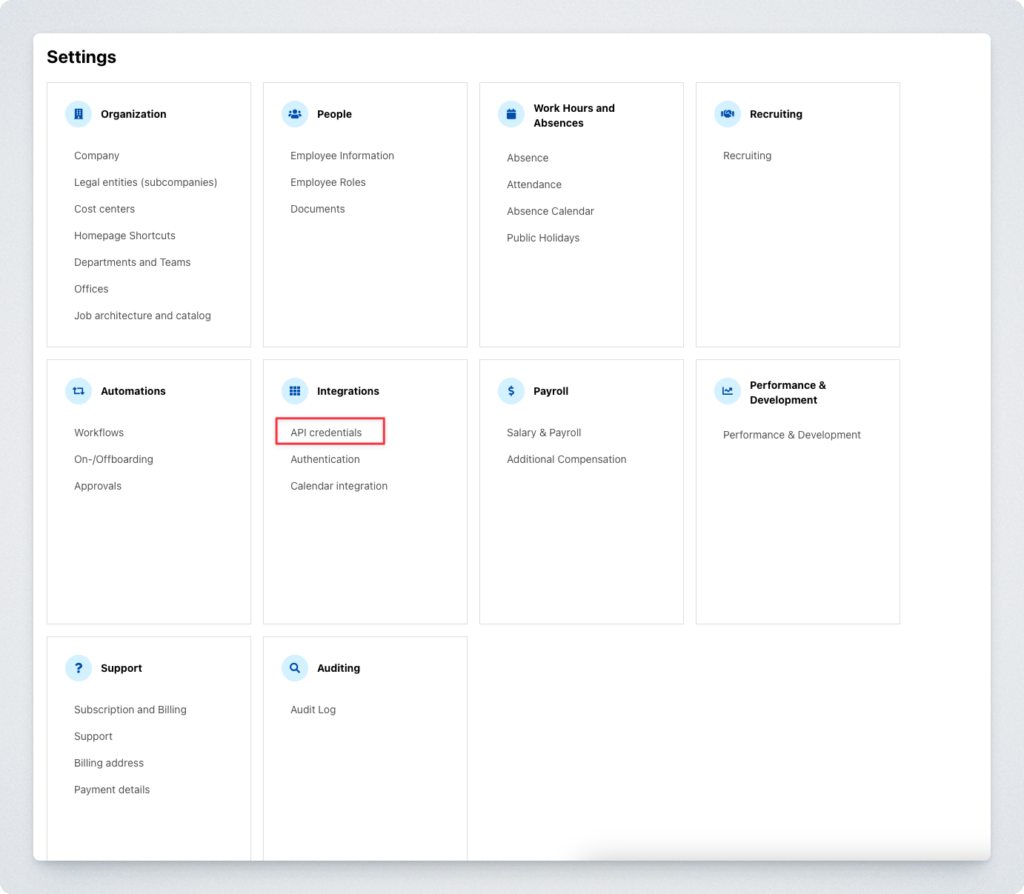
- Log into your Personio account and visit Settings in the bottom left.
- On the Integrations tile, select API credentials.
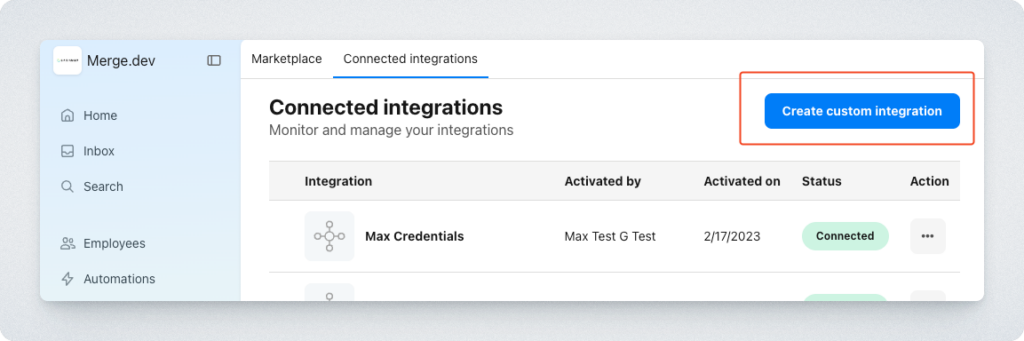
- Enter a name for your new integration and click Next in the bottom right corner of the page.
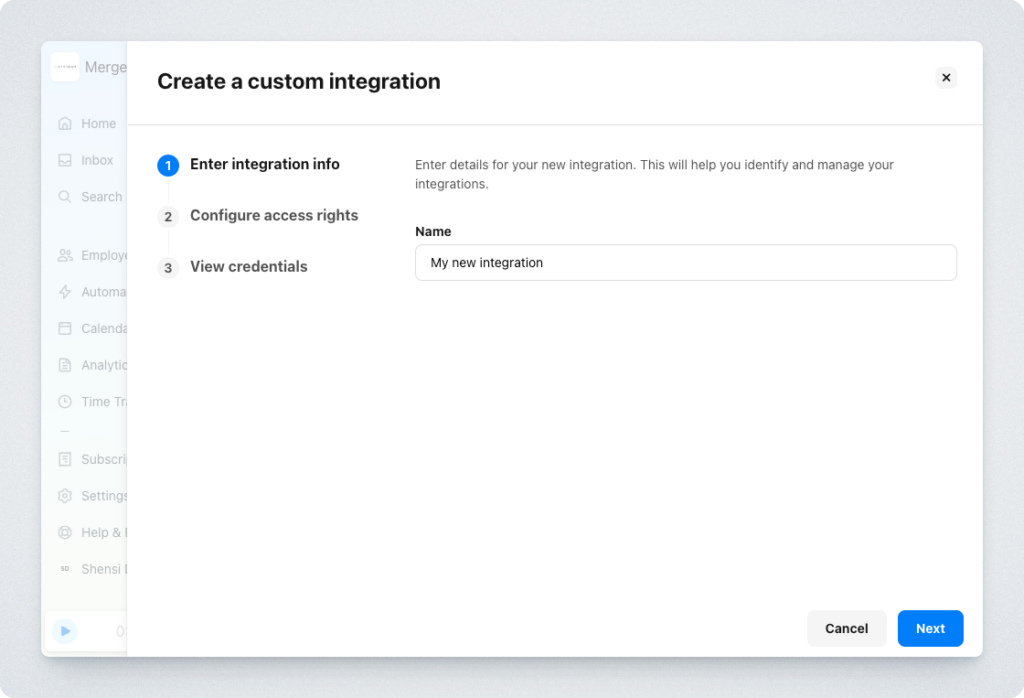
- Under Select the attributes you want to grant access rights for, select the attributes you want to sync. In order to sync all data supported by Merge, select at least the following attributes:
- Employees
- Attendances
- Absences
- Org Units
- Under Readable employee attributes, click select all or select the individual fields you want to sync. Commonly used fields include:
- Email, First name, Last Name, Gender, Hire date, Office, Profile Picture, Termination date, Status, Supervisor, Occupation type
- Click Create integration once done. You will then see your API Credentials populate. Copy and save these in a secure place.
Step 2: Paste your Client ID and Secret into the linking flow.
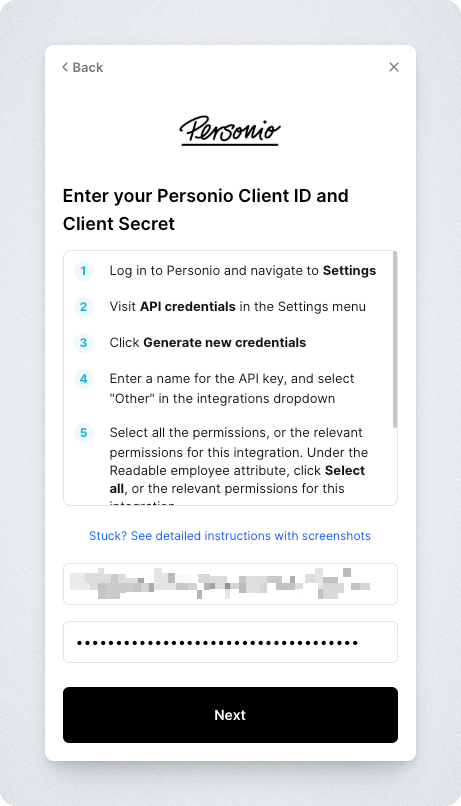
You should now be able to set up the Personio Data Connector with your Customer Success Manager. If you need further assistance, please consult the GoProfiles Help Center or Chat with Us.














