


This article is meant to provide you insight on what you should expect to see when your Customer Success Manager helps you connect UKG Pro to GoProfiles via API. Reading this prior to connecting the two platforms can help you walk through the connection process smoothly.
Find your UKG Pro Customer API Key.
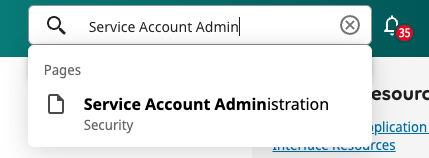
- You’ll want to login to your UKG Pro account and search Service Account Administration in your search bar on the top right.
- Copy the Customer API Key from under the header.

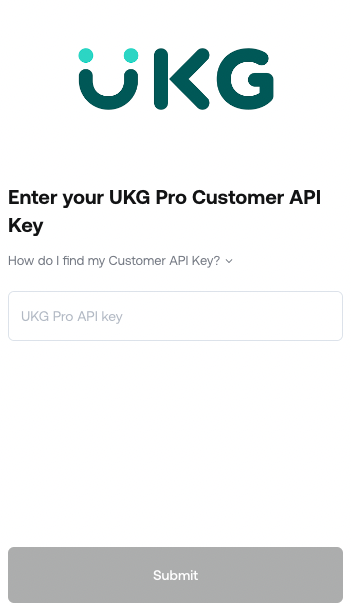
- Paste the Customer API Key in the Profiles Link.
Create your Service Account
- On the UKG Pro Service Account Administration Page, click on “+ add” in the upper right hand side.

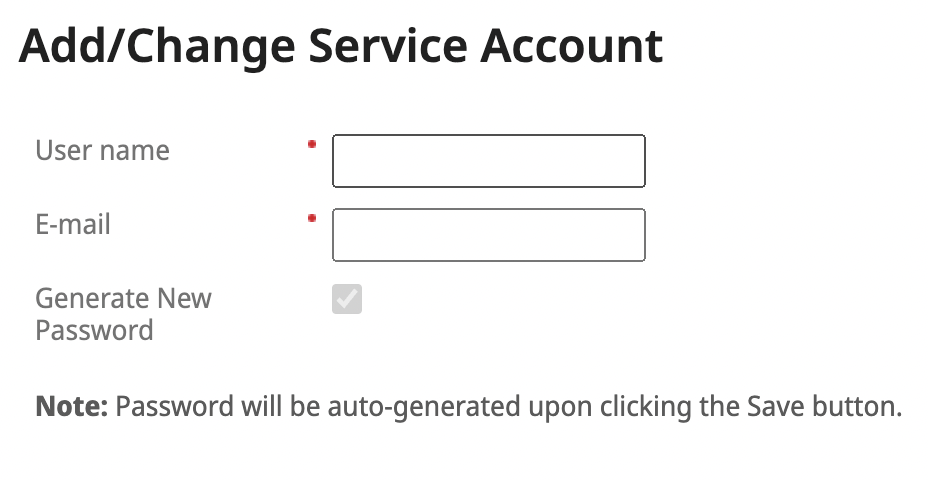
- Enter in the admin of your UKG Pro account’s username and email.
- You will need the username later.
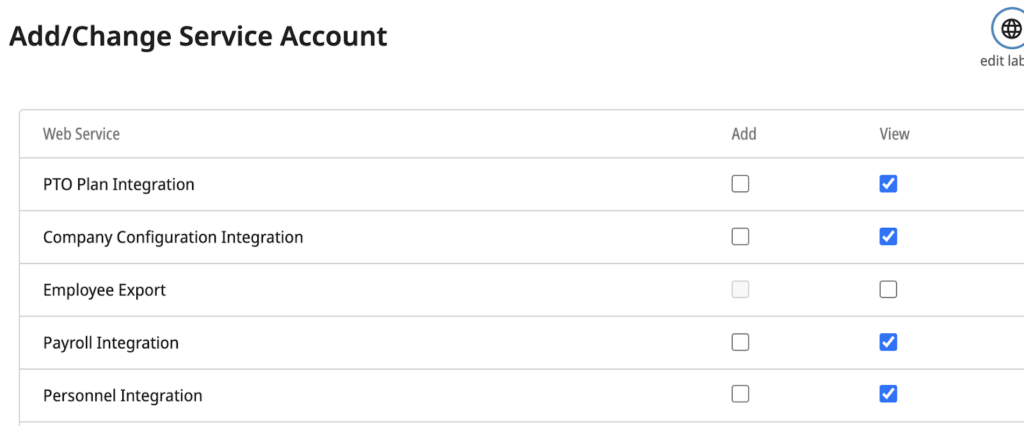
- Scroll down under Web Service to enable permissions.
Note: Employee Person Details is required to authenticate your account with Profiles. Company Configuration Integration, Payroll Integration, Personnel Integration, Employee Person Details are other relevant permissions.

- Click Save. Your new password will pop up. Save the password in a secure location.

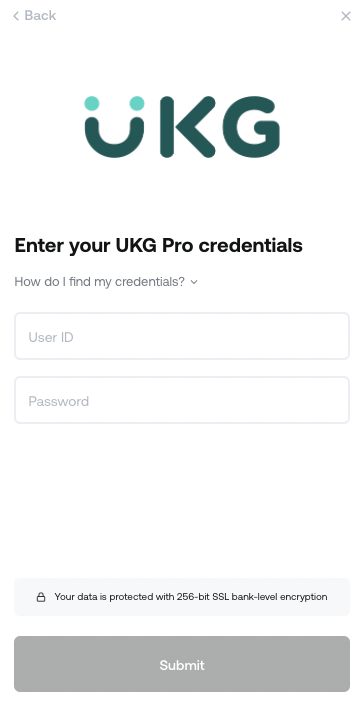
- Enter your UKG Pro service account credentials in the Profiles Link and click Submit.
- This should be the user name of your admin service user and the password you just generated.
Finding your UKG Web Service Domain.
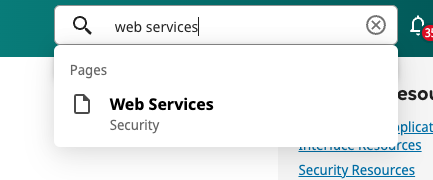
- In your search bar, search for Web Services.
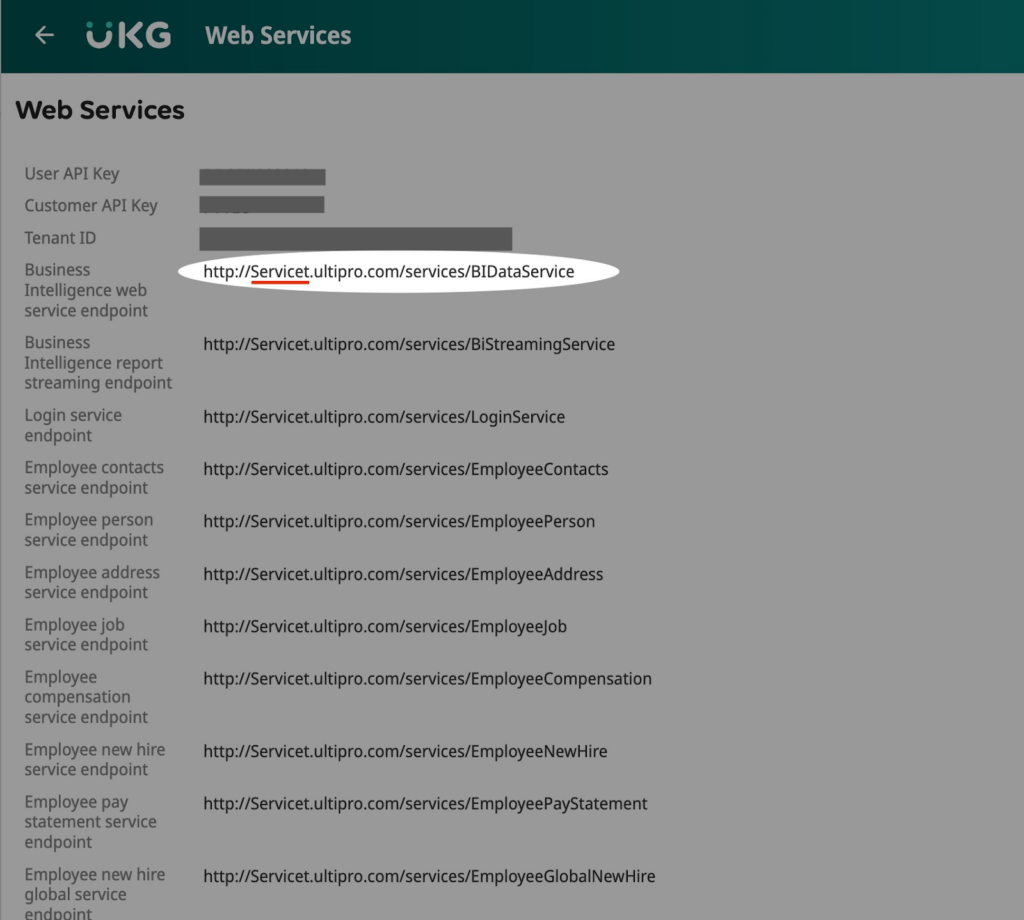
- Copy the subdomain from any Web Services URL up until you see “ultipro”.
- For example if your URL is, http://Servicet.ultipro.com/services/BIDataService then copy “Servicet”.
- Note: This is not the login url subdomain.
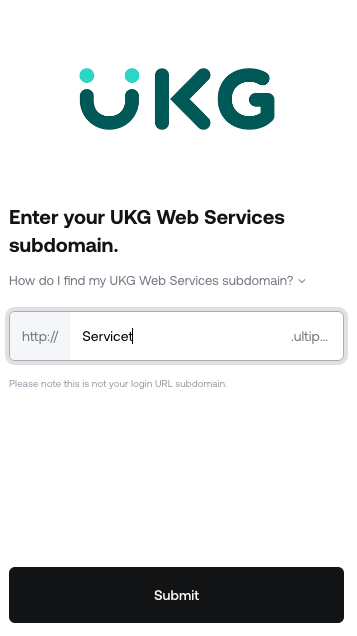
- Paste your URL in the Profiles Link and press Submit!
You should now be able to set up UKG Pro via API with your Customer Success Manager. If you need further assistance, please consult the GoProfiles Help Center or Chat with Us.














