


This article is meant to provide you insight on what you should expect to see when attempting to connect your data source to GoProfiles with your Customer Success Manager.. Reading this prior to connecting the two platforms can help you walk through the API access smoothly.
Overview
To authenticate Lucca using an API Key, you will need to provide the following information:
- Tenant URL
- API key
This guide will walk you through finding or creating those credentials within Lucca.
Prerequisites
You must be an Administrator in your company’s Lucca instance, or someone has shared their access with you.
Instructions
Step 1: Locate your Lucca tenant URL.
- Log into your Lucca tenant.
- Copy the base URL of your Lucca instance and input it in the linking flow.

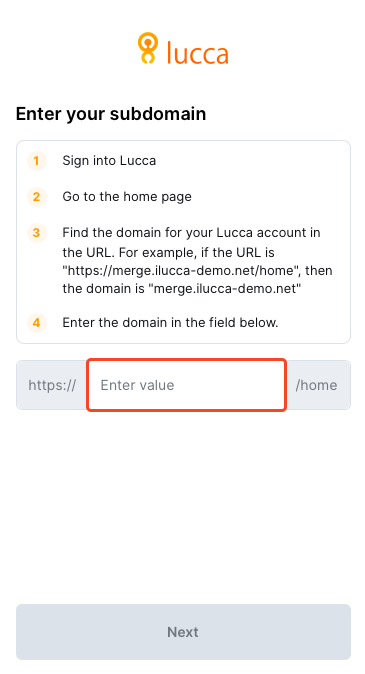
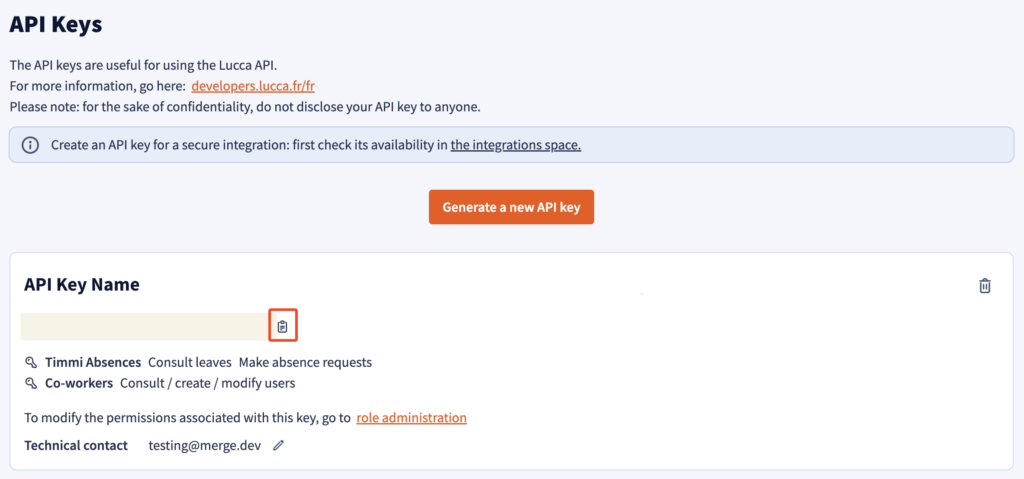
Step 2: Create an API Key.
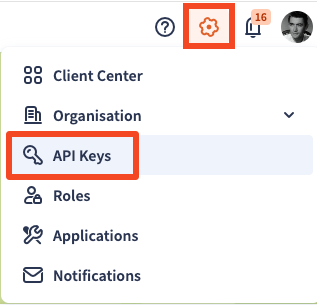

- Name your API Key.
- Add the following permissions:
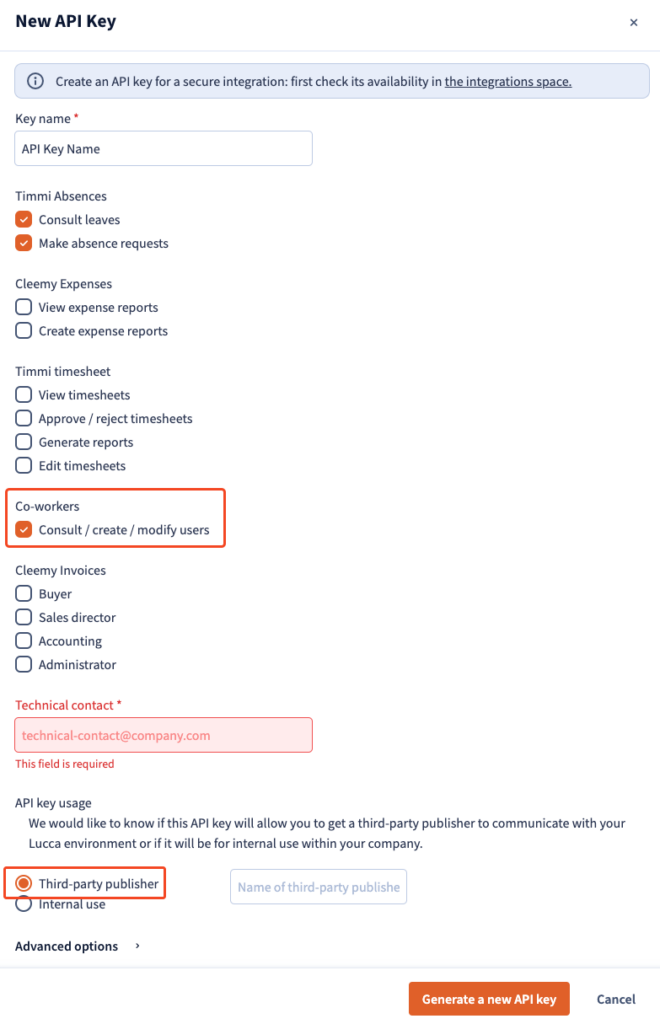
- Enter in your email address as the Technical contact.
- Select the API key usage of Third-party publisher.
- Click Generate a new API key.
Step 3: Configure Role Permissions,

- Under the Co-workers tab, add the following permissions to the pre-existing set of default permissions:
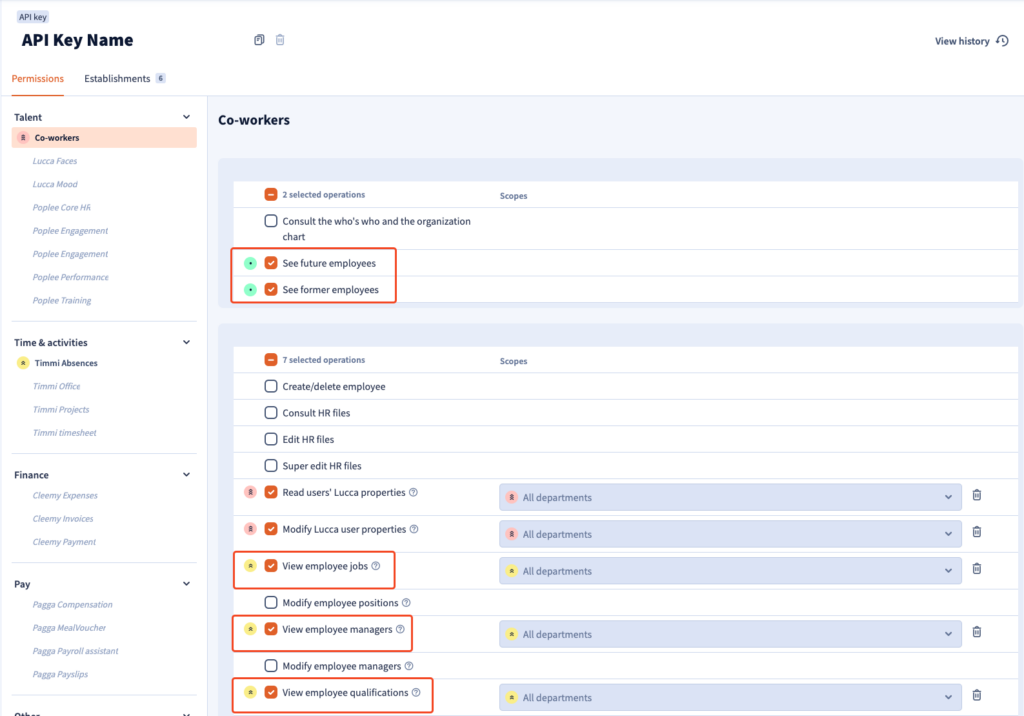
- Save your role configuration.
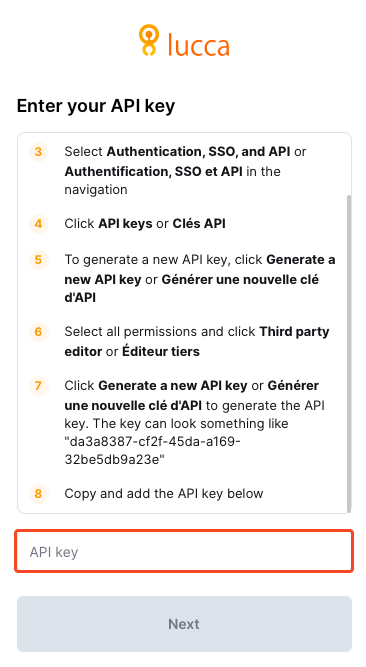
Step 4: Enter your API into the linking flow
You should now be able to set up the Lucca Data Connector with your Customer Success Manager. If you need further assistance, please consult the GoProfiles Help Center or Chat with Us.














