


This article is meant to provide you insight on what you should expect to see when attempting to connect TriNet to GoProfiles with your Customer Success Manager.
TriNet requires a Client ID and Secret, which you’ll need to have provisioned for your account by the TriNet team. You can get this provisioned for you by filling out this form.
Instructions
Step 1: Get the Trinet Client ID and Secret.
- Visit the TriNet Solution Engineering Intake Form.
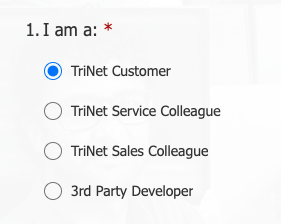
- For step 1, select that you are a TriNet customer. For steps 2-6, answer basic business information about your company.
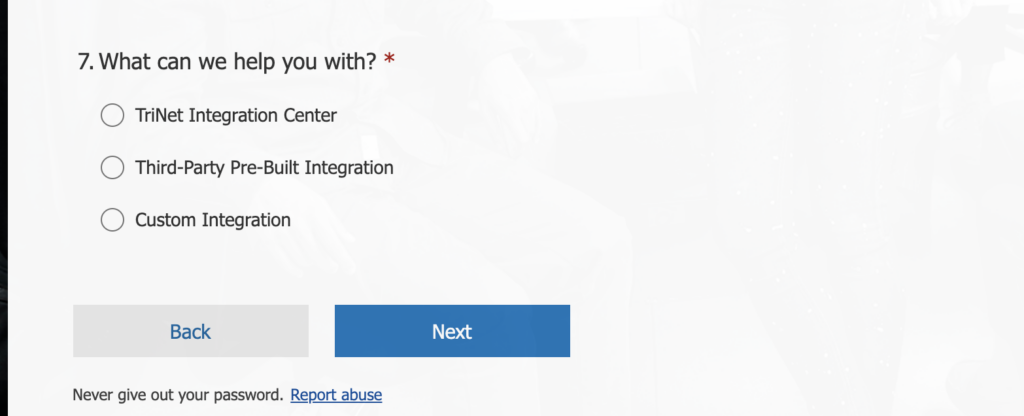
- For Step 7, select Custom Integration.
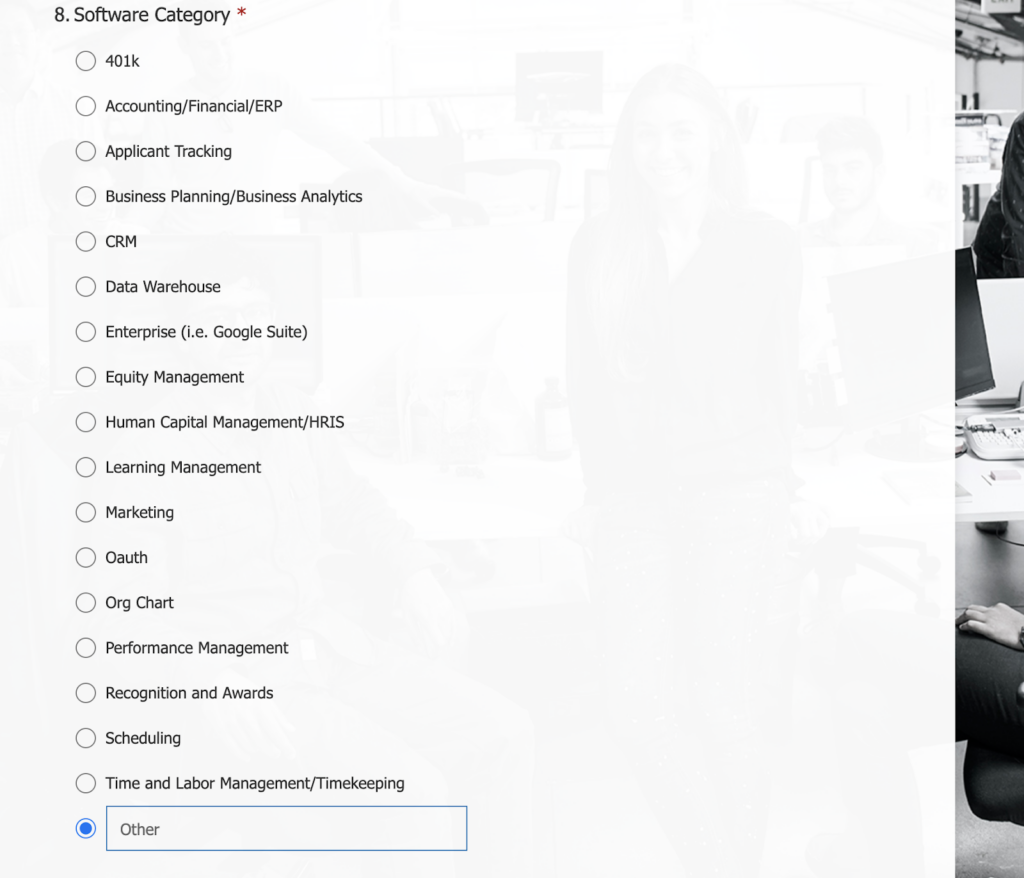
- Select ‘Other’ and fill out the name of the application as GoProfiles.
- Provide TriNet details on what needs to be able to access in terms of data for the integration to work. Copy and paste the endpoints and scopes in your TriNet form.
- We recommend listing that you need access to the following endpoints:
- GET /company/{company_id}/departments
- GET /company/{company_id}/employees?viewType=All
- GET /company/{company_id}/locations
- GET /company/{company_id}/payroll-schedules
- GET /company/{company_id}/paygroups
- GET /manage-company/{company_id}/org-details
- GET /payroll/{company_id}/{employee_id}/paychecks
- GET /payroll/{company_id}/{employee_id}/paycheck-details/{id}
- GET /payroll/{company_id}/{employee_id}/pay-info
- We recommend listing that you need access to the following scopes:
- basic-read
- hr-admin-read
- hr-pay-read
- Hr-personal-read
- The final screen will have you Review and complete Company Officer Information, after which a TriNet representative will be in touch with you, typically within three to five business days.
Step 2: Find your API Key and Secret.
NOTE: You’ll need to have a Developer Account because that is how TriNet delivers these credentials.
- After the id and secret get added to your account, you can log into the Developer Portal, click on your email address in the upper right, and select Apps.

- You’ll click the relevant app and then copy the API Key and Secret into Merge Link.

Step 3: Finding your Company ID.
- In your TriNet portal, go to Money.
- Navigate to Paychecks and Statements.
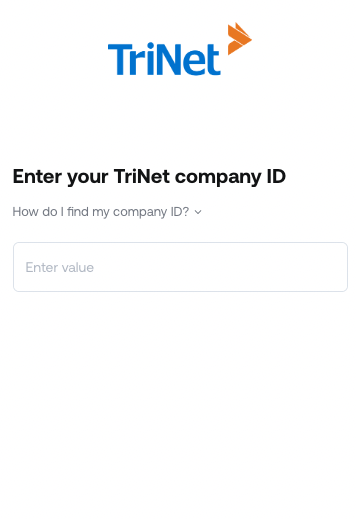
- View any paycheck and there you’ll be able to view your Company ID.
- Paste your Company ID in the Profiles Link.
You should now be able to set up the TriNey Data Connector with your Customer Success Manager. If you need further assistance, please consult the GoProfiles Help Center or Chat with Us.














