


This article is meant to provide you insight on what you should expect to see when attempting to connect HiBob to GoProfiles with your Customer Success Manager. Reading this prior to connecting the two platforms can help you walk through the API access smoothly. With HiBob, you have two different ways to integrate – using your HiBob token and key or an API access code and key.
Overview
To authenticate Hibob using a Service Account, you will need to provide the following information:
- Service Account User ID
- Service Account Token
Prerequisites
Please ensure you fulfill have Administrator permissions in your company’s Hibob instance.
Instructions
Step 1: Create the Service User in your Hibob Account
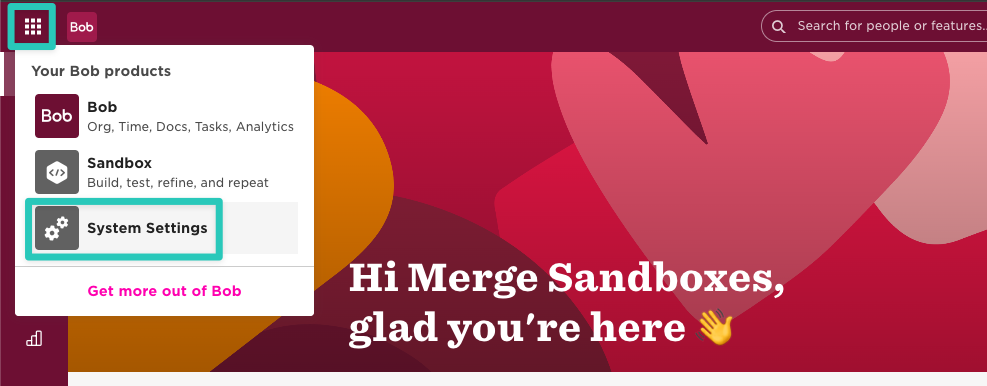
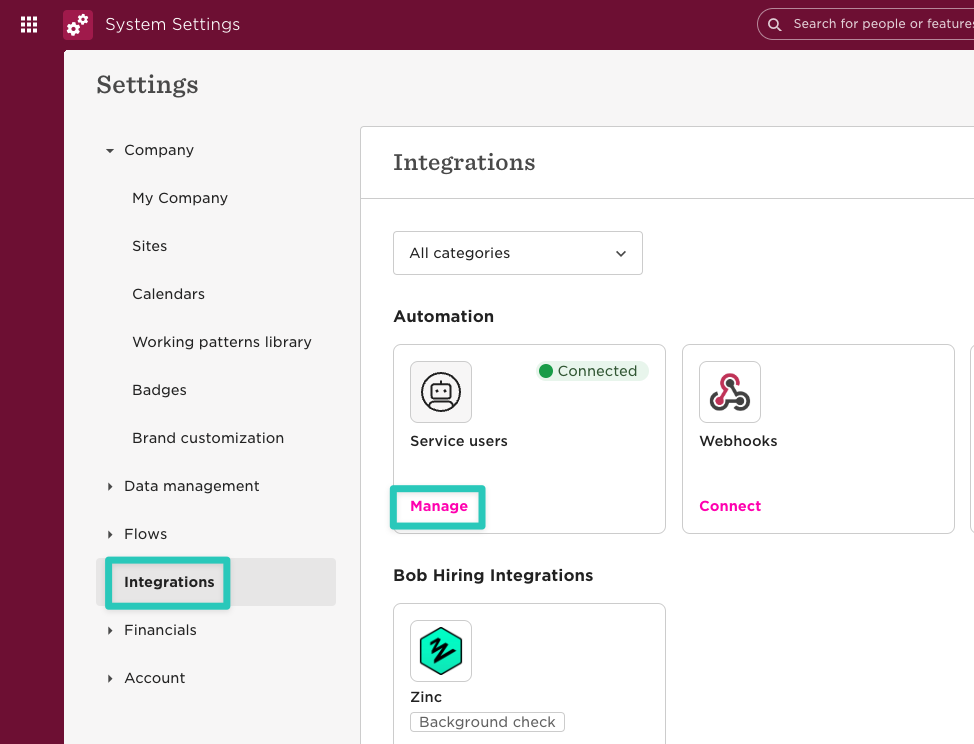
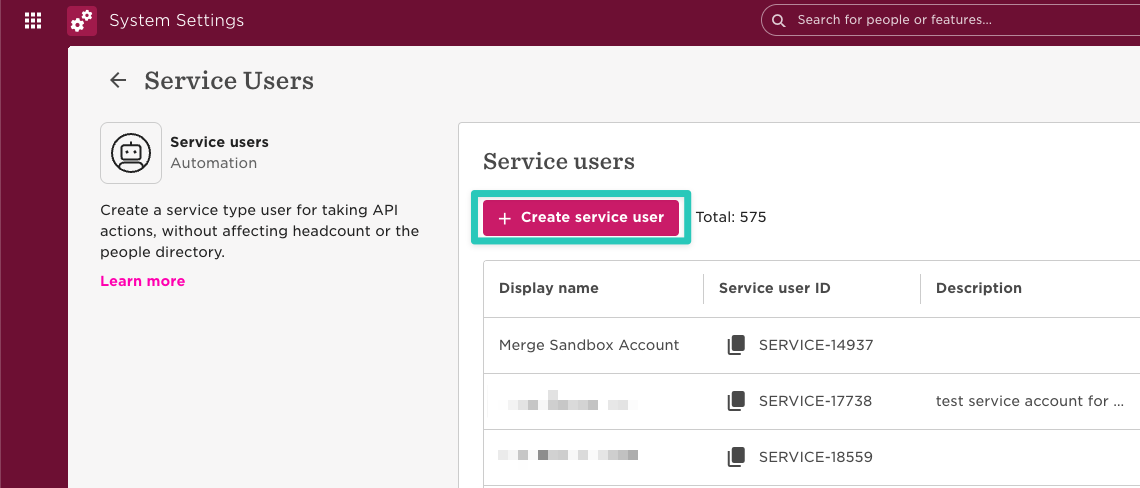
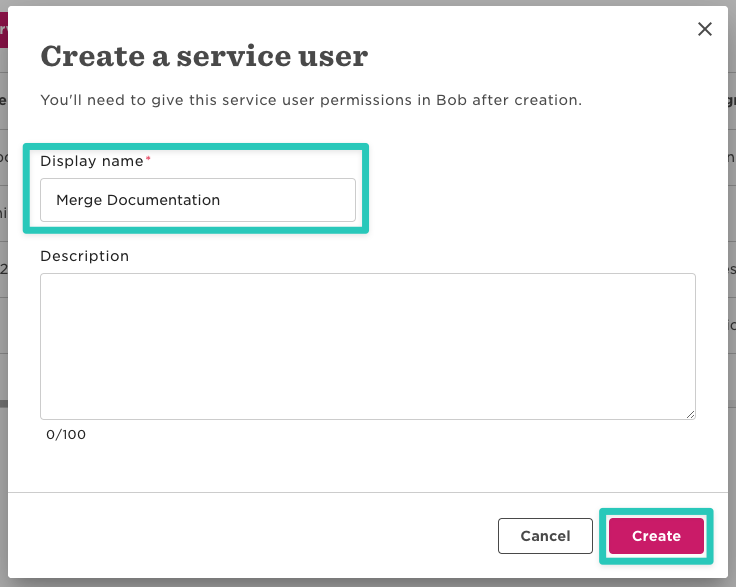
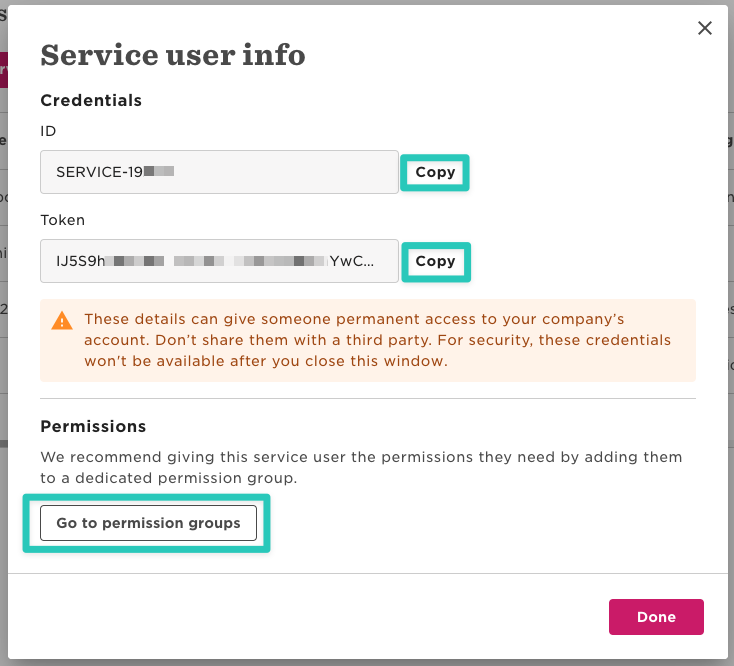
- On the next screen, Hibob display the credentials for your new service user. Make a note of both the ID and the Token, then click on Go to permission groups and proceed with the next step
Step 2: Create a Permission Group
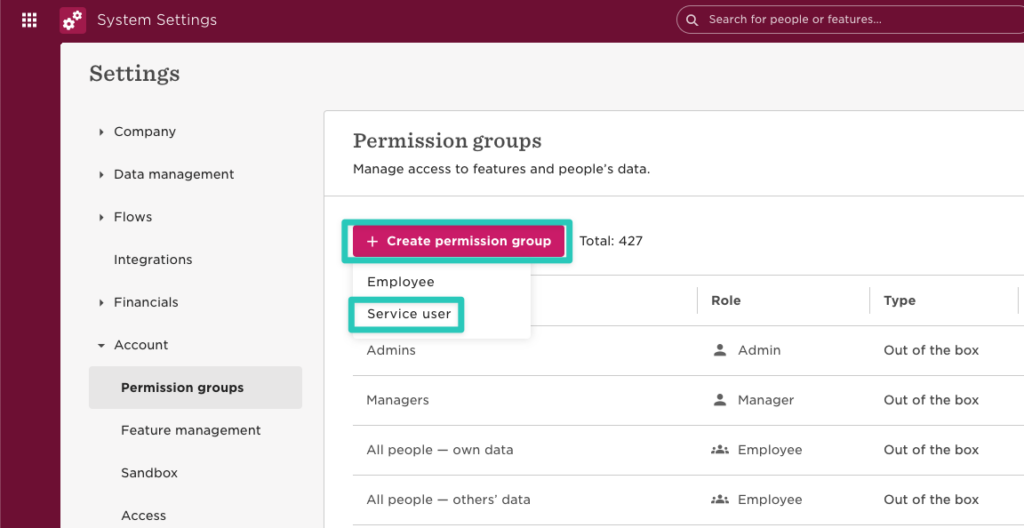
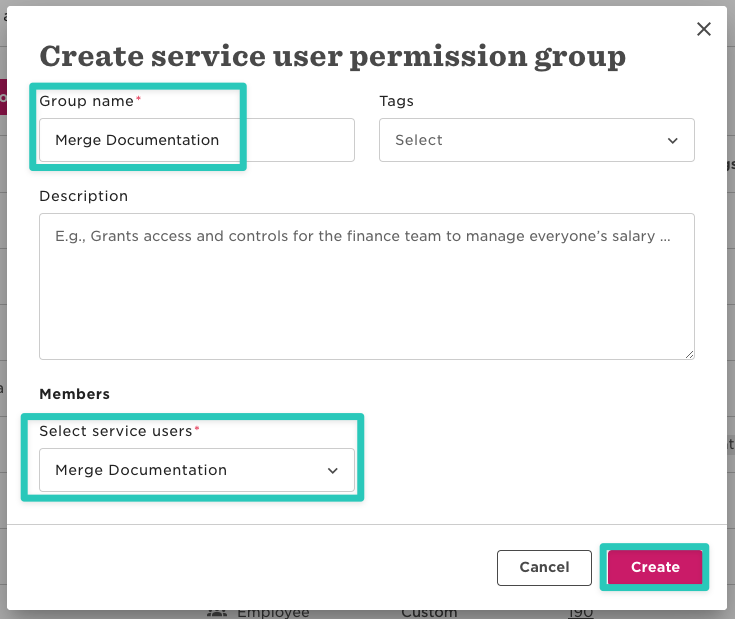
- When asked to confirm the changes, click Confirm
- Switch to the People’s data tab of the new Permission Group, pick “Select people by condition” under Whose data can members access?, then click on Edit to select the people the integration can access
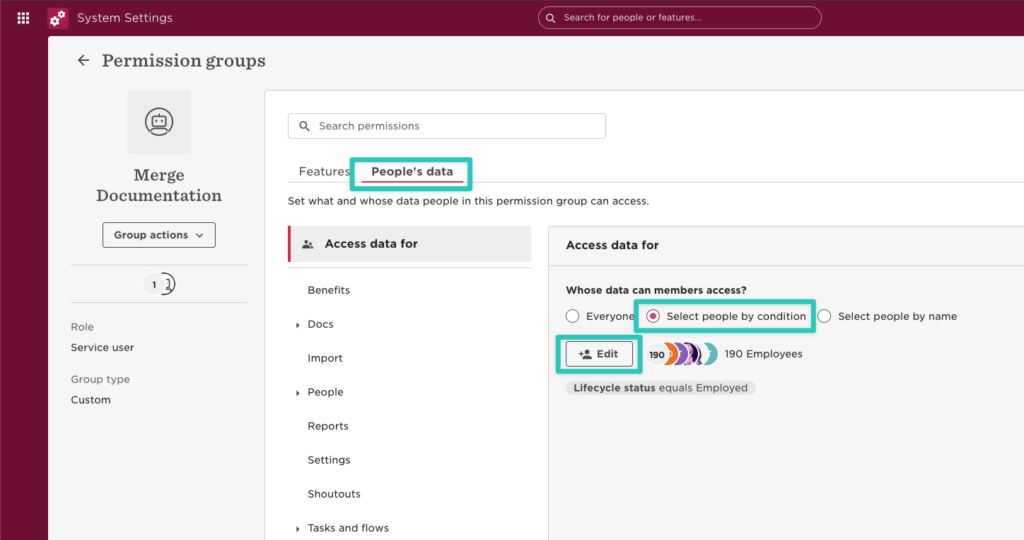
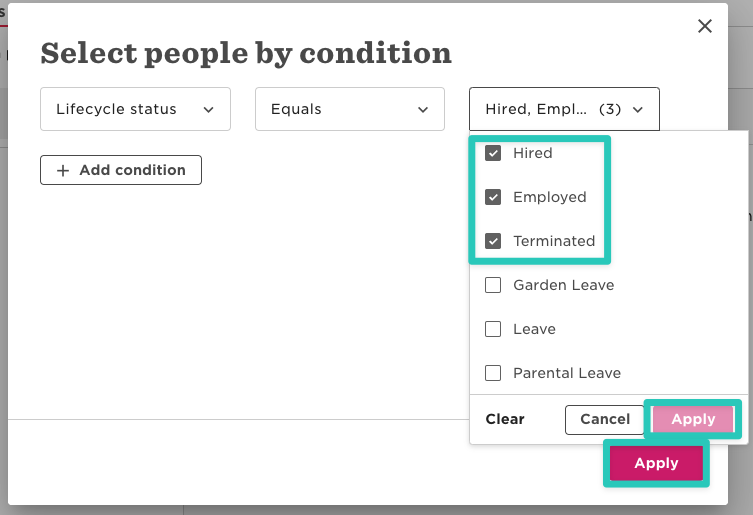
- In the Select people by condition pop-up, select all relevant Lifecycle Statuses. In most scenarios this will include Hired, Employed, and Terminated. Click Apply twice once done:
- Back in the People’s Data add the following permissions.
- You only need to configure the permissions based on what information should be pulled into GoProfiles.
- People > Basic Info
- View selected employees’ Basic info sections (This is required to surface employees)
- People > Employment
- View selected employees’ Employment sections
- View selected employees’ Employment section histories
- People > History
- View selected employees’ profile changes history
- People > Identification
- View selected employees’ Identification sections
- People > Lifecycle
- View selected employees’ Lifecycle sections (This is needed to surface Employment Status)
- Edit selected employees’ Lifecycle sections
- View selected employees’ Lifecycle section histories
- People > Personal
- View selected employees’ Personal sections
- Edit selected employees’ Personal sections (Note: This is needed to surface Date of Birth. We will NOT edit any employee sections)
- People > Personal contact details
- View selected employees’ Personal contact details sections
- Edit selected employees’ Personal contact details sections
- People > Work
- View selected employees’ Work sections
- View selected employees’ Work section histories
- People > Work contact details
- View selected employees’ Work contact details sections
- Once done adding the above permissions, finish creating the Permission Group by selecting Save.
Step 3: Link your Hibob account
Copy and paste the Service Account User ID and Token created in Part 1 into the linking flow.

Note: Hibob allows moving fields into categories other than those listed in the guide above. If some fields are missing after linking your Hibob account, view a sample employee in Hibob and confirm under which category (e.g. Personal, Work, About) the missing field can be found. Then add View permissions under People’s data for that category as described above (for particularly sensitive fields you would also need to grant Edit permissions so Merge can read the respective field values).
You should now be able to set up the HiBob Data Connector with your Customer Success Manager. If you need further assistance, please consult the GoProfiles Help Center or Chat with us.














